


Transfer Workspace Ownership
Transfer Workspace Ownership
The Workspace owner, sometimes called the billing owner, is responsible for the workspace’s subscription. They manage its billing settings, and their payment card is charged for the subscription.
You might transfer workspace ownership when the current Workspace owner is leaving your organization, no longer manages the workspace, or needs someone else to take responsibility for the Expensify subscription.
Who can transfer workspace ownership
Workspace Admins can transfer workspace ownership to themselves to become the Workspace owner.
Before you begin:
- You’ll need to be a Workspace Admin on the workspace you’re transferring. To take over an Annual subscription that includes multiple workspaces, you must be a Workspace Admin on every workspace in that subscription.
- If there are multiple workspaces, you must transfer one workspace at a time.
- You’ll need a payment card on file. If you don’t have one, you’ll be prompted to add it during the transfer.
How to transfer workspace ownership
- In the navigation tabs (on the left on web, on the bottom on mobile), go to Workspaces > [workspace name] > Members.
- Select the current Workspace owner from the member list.
- Click Transfer owner.
- Confirm the transfer.
When the transfer is complete, you’ll see a confirmation message that you’re now the Workspace owner.
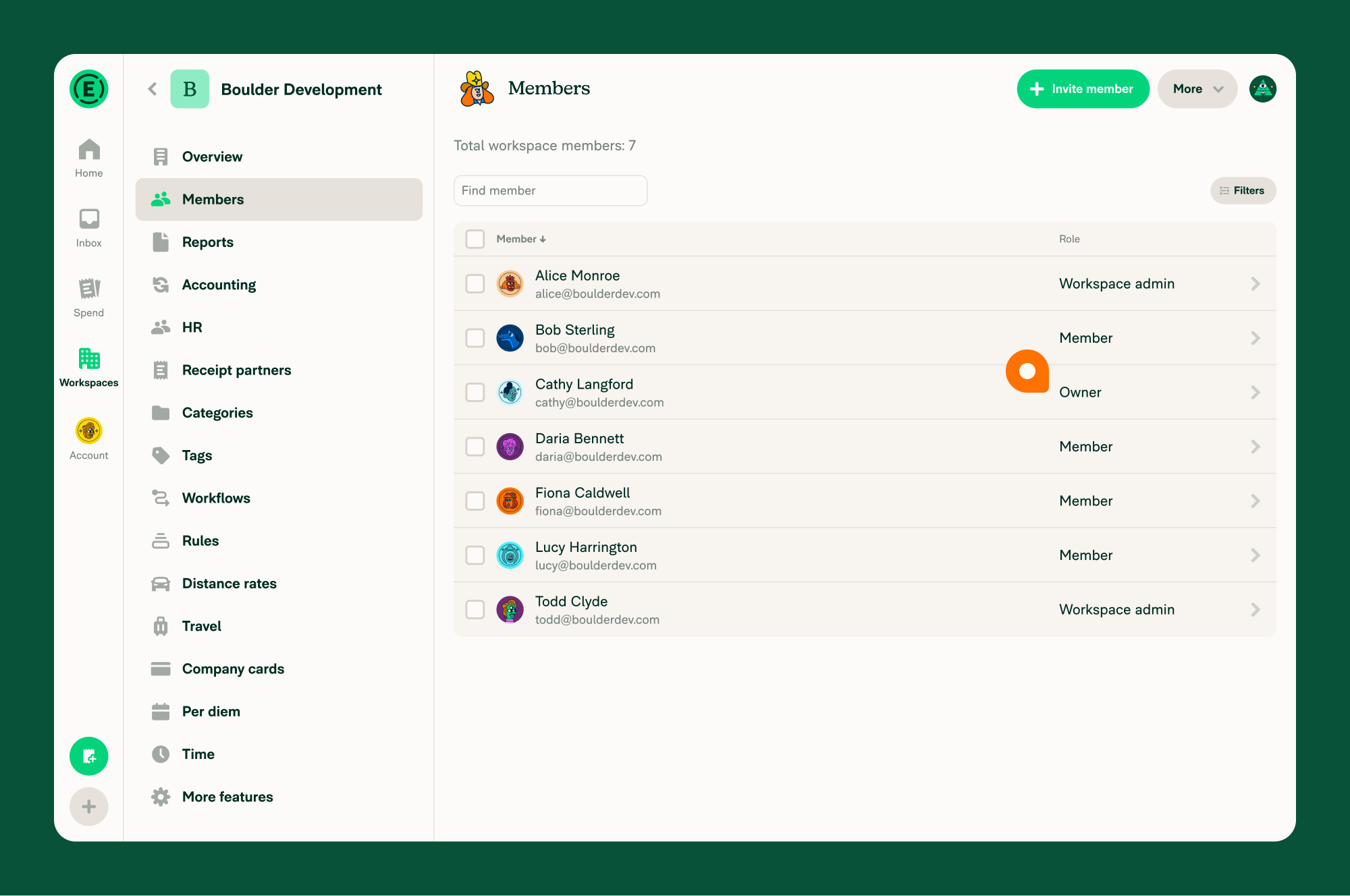
![The member detail panel for the current Workspace owner (opened from Workspaces > [workspace name] > Members) with the "Transfer owner" button visible](https://help.expensify.com/assets/images/ExpensiHelp-Transfer-Workspace-Ownership-2.png)
What happens after you transfer Workspace ownership
- You become the Workspace owner for the workspace.
- Your payment card is used for future subscription charges.
- You can manage the workspace’s billing settings.
- You’ll receive billing notifications and receipts for that workspace.
Depending on the workspace’s status and subscription, you may also see one of the following messages:
- Outstanding balance: If there’s an unpaid balance from a previous billing period, you’ll be prompted to transfer the balance before ownership can be transferred. Your payment card is charged for that amount immediately.
- Take over Annual subscription: If the workspace is the only workspace on the current owner’s Annual subscription, you’ll be prompted to transfer the subscription to your account. This merges the Annual subscription with your current subscription and increases your subscription size by the number of members shown in the message.
- Duplicate subscription alert: If the current Workspace owner has other workspaces on the same Annual subscription, you can’t transfer the subscription by taking over just one workspace. To transfer the Annual subscription, ask the current Workspace owner to add you as a Workspace Admin to every workspace included in the subscription. Then transfer ownership of each workspace.
Related articles
FAQ
Why do I see the “Take over Annual subscription” message?
This message appears when the workspace you’re taking over is the only workspace included in the current owner’s Annual subscription.
If you continue, the Annual subscription is transferred to your account and merged with your existing subscription. Your subscription size increases by the number of members shown in the message.
Why do I see the “Duplicate subscription alert” message?
This message appears because the current Workspace owner has multiple workspaces on the same Annual subscription.
To transfer the Annual subscription, you must be a Workspace Admin on every workspace included in that subscription. Ask the current Workspace owner to add you as a Workspace Admin to all of their workspaces, then transfer ownership for each workspace.
If you only want to become the owner of the current workspace, select Continue to transfer ownership without transferring the Annual subscription.
Why do I see the “Outstanding balance” message?
This message appears when the current Workspace owner has an unpaid balance from a previous billing period. To complete the ownership transfer, you’ll need to transfer the outstanding balance. Once you confirm, your payment card is charged for the outstanding amount and the ownership transfer continues.
How do I take over an Annual subscription?
You can take over an Annual subscription only if you’re a Workspace Admin on every workspace included in that subscription.
- If the subscription includes only the workspace you’re transferring, you’ll see the Take over Annual subscription message. Continue to transfer the subscription to your account.
- If the subscription includes multiple workspaces, you’ll see the Duplicate subscription alert message. Ask the current Workspace owner to add you as a Workspace Admin to every workspace included in the subscription, then transfer ownership of each workspace.
Why can’t I see billing history from the previous Workspace owner?
Billing history only includes subscription charges made while you’re the Workspace owner. Charges paid by the previous Workspace owner won’t appear in your billing history.
If you need to review previous subscription charges, ask the previous Workspace owner to follow the steps to make billing receipts visible to other Workspace Admins.
How can I confirm the workspace ownership transfer worked?
Click the navigation tabs (on the left on web, on the bottom on mobile), then select Workspaces. In the Owner column, verify that your name appears as the owner of the workspace.


