


Workspace Merchant Rules
Merchant Rules
Merchant Rules let Workspace Admins automatically update expense fields when an expense matches a merchant name. Use them to apply consistent categories, tags, merchant names, tax settings, and other expense fields across expenses.
Merchant Rules live on the Expense defaults tab of the Rules page and are only available after Rules are enabled for the workspace. Learn how to enable Workspace Rules.
How to create a single Merchant Rule
To create a Merchant Rule:
- In the navigation tabs (on the left on web, and at the bottom on mobile), click Workspaces > [workspace name].
- Click Rules.
- Open the Expense defaults tab, click Add rule, then select Apply expense defaults.
- Select Merchant, then enter the merchant name and choose how it should match:
- Contains
- Matches exactly
- Select the fields you want the rule to update.
- (Optional) Enable Apply to existing unsubmitted expenses to also apply the rule to matching expenses that haven’t been submitted yet.
- (Optional) Click Preview matches to review which unsubmitted expenses match the rule.
- Click Save rule.
How to import multiple Merchant Rules
Instead of creating Merchant Rules one at a time, you can import multiple Merchant Rules from a spreadsheet.
- Download and complete the Merchant Rules import template, or create a spreadsheet with the following columns:
- Merchant — The merchant the rule should apply to (required).
- Updated merchant — Replace the merchant name (optional).
- Updated category — Apply a category (optional).
- Updated tag — Apply a tag (optional).
- Updated description — Apply a description (optional).
- Reimbursable — Set reimbursable status to True or False (optional).
- Billable — Set billable status to True or False (optional).
- In the navigation tabs (on the left on web, and at the bottom on mobile), click Workspaces > [workspace name].
- Click Rules, then open the Expense defaults tab.
- Click More, then select Import merchant rules.
- Select Choose file and upload your completed spreadsheet.
- Map each spreadsheet column to the corresponding Merchant Rule field:
- For Merchant, choose how the merchant name should match:
- Merchant is — Requires an exact match.
- Merchant contains — Matches merchants whose names contain the value.
- For Merchant, choose how the merchant name should match:
- Click Import.
How Merchant Rules are applied
Each Merchant Rule matches expenses using either Matches exactly or Contains.
When an expense is created and its merchant matches a rule, Expensify automatically updates the fields configured in that rule.
Keep these behaviors in mind:
- Rules are applied when an expense is created.
- If multiple rules match, the earliest-created rule is applied.
- Fields that members manually set during expense creation aren’t overwritten.
- If a tag a rule applies is deleted from the workspace, the rule stops applying that tag and stops showing it. The rule’s other updates still apply.
How to improve Merchant Rule matching
Use these best practices to ensure predictable results:
Use specific merchant names
- Start with exactly matches for common vendors (e.g., “Uber”, “Slack”) to avoid false matches.
- Use contains carefully, since broad terms can match unintended merchants.
Test Merchant Rules before rollout
- Use Preview matches during setup.
- Start with narrow rules and expand as needed.
What can you do with Merchant Rules?
Merchant Rules can help you:
- Standardize merchant names (for example, “Starbucks #1234” → “Starbucks”)
- Automatically categorize expenses (for example, Uber → Travel)
- Apply consistent tags (for example, Staples → Office)
- Mark expenses as reimbursable or non-reimbursable (for example, Slack → Non-reimbursable)
- Apply descriptions or tax settings automatically
FAQ
What happens if a personal expense rule and a Merchant Rule both apply?
Personal expense rules take precedence over Merchant Rules. Learn more about Personal Expense Rules.
How can I tell which Merchant Rule was applied?
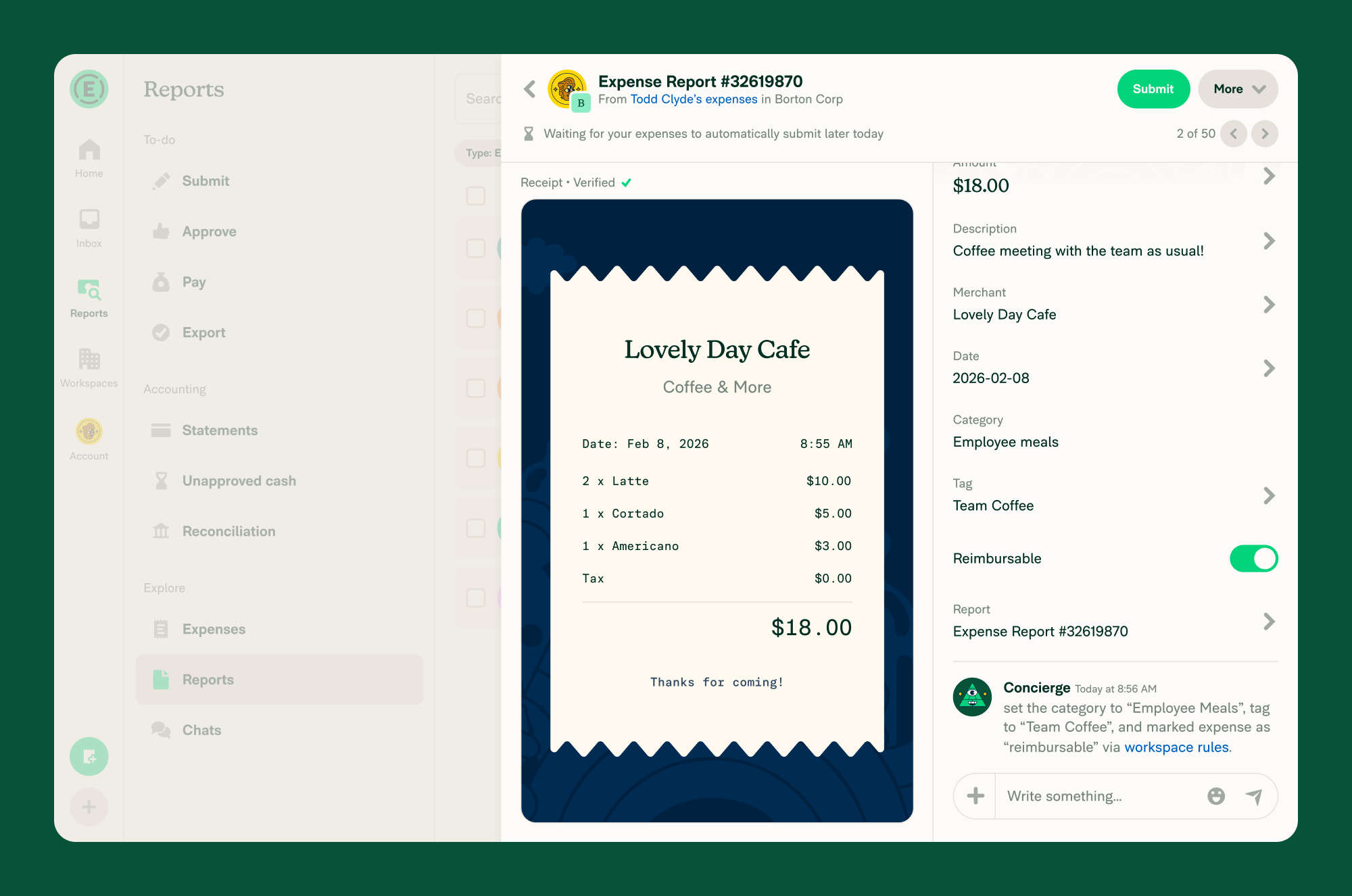
When a Merchant Rule updates an expense, Expensify adds an automated message to the expense chat.
To check which rule was applied:
- Open the expense.
- Scroll to the bottom of the expense details.
- Look for a message from Concierge indicating the update.
The message identifies which fields were updated and that the changes were made by a Merchant Rule.
Why didn’t my Merchant Rule apply?
Common reasons include:
- The merchant name didn’t match the rule criteria.
- The rule is disabled.
- Another rule matched first.
- A field was manually set during expense creation.
- The rule was created after the expense and wasn’t applied retroactively, unless you enabled Apply to existing unsubmitted expenses when saving the rule. Expenses that have already been submitted are never updated by a rule.
- The tag the rule applies was deleted from the workspace, so only that update is skipped.
How do I clear a Category, Tag, or Tax value from a Merchant Rule?
When you add or edit a rule and open the Category, Tag, or Tax field, select None to clear the previously selected value. Then select Save rule.
What happens to a Merchant Rule when the tag it applies is deleted?
The rule stays in place and keeps applying its other updates, but the deleted tag is no longer applied to matching expenses and is no longer listed in the rule.
You’ll see this in two places:
- On the Expense defaults tab of the Rules page, the rule summary no longer lists the tag update.
- When you open the rule, the Tag field is empty.
To have the rule set a tag again, open the rule, select a value in the Tag field, then select Save rule. If you recreate a tag with the same name, the rule applies that tag again. Learn how to create and manage expense tags.
Why don’t all of my tags appear when I select Tag in a Merchant Rule?
The Tag field lists only the tags the rule can apply. Disabled tags are hidden, and on a workspace with multi-level tags, each level lists only the tags available under the levels you already selected.
How do I leave Reimbursable or Billable unset in a Merchant Rule?
When you open the Reimbursable or Billable selector, it shows three options: Don’t change, Yes, and No. Don’t change is selected by default and leaves the field unset, so matching expenses keep their existing value.
What expense fields can be updated by Merchant Rules?
Merchant Rules can update:
- Merchant name
- Category
- Tag
- Description
- Reimbursable status
- Billable status
- Tax


