


View the Violations by submitter report
View the Violations by submitter report
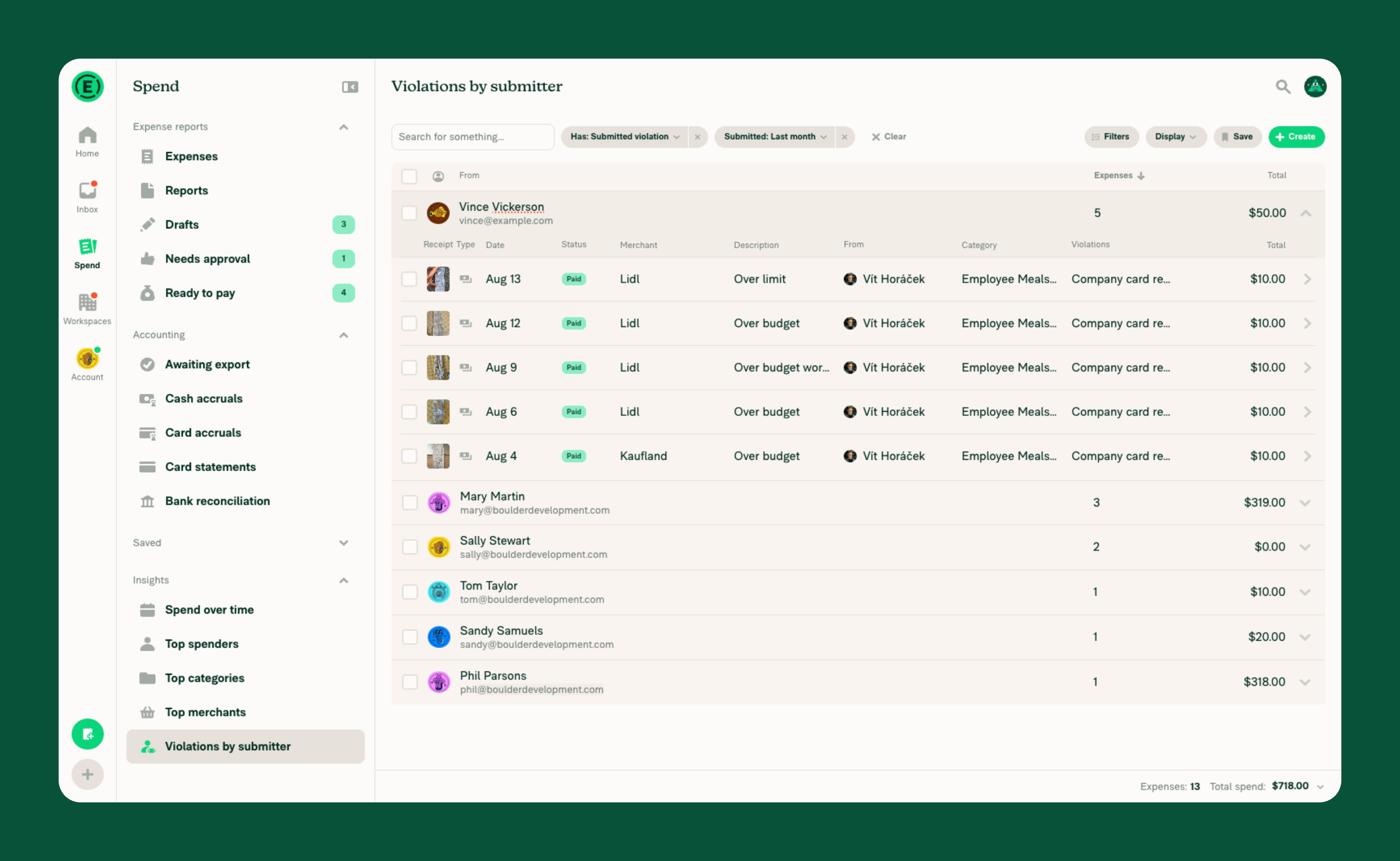
The Violations by submitter report shows which members submitted the most expenses with violations last month. Use it to identify repeated violations, spot compliance patterns, and decide where guidance or follow-up may be needed.
The report is a pre-built suggested search and is available only for Control workspaces with Rules enabled.
If Rules are not enabled, learn how to set up Workspace Rules.
Who can use the Violations by submitter report
Workspace Admins and Auditors can use the Violations by submitter report on web and mobile when:
- The workspace is on the Control plan.
- Rules are enabled for the workspace.
- The workspace has two or more members.
How to view the Violations by submitter report
Web:
- Use the navigation tabs on the left and select Spend.
- Under Insights, select Violations by submitter.
Mobile:
- From the navigation tabs on the bottom, tap Spend.
- Tap the hamburger menu in the top-left corner, then select Violations by submitter.
The report groups last month’s expenses that had a violation when submitted by the member who submitted them.
What information the Violations by submitter report displays
The Violations by submitter report groups expenses that had a violation when submitted by the member who submitted them.
Each row represents a member and shows:
- From – the member who submitted the expenses
- Expenses – the number of expenses with violations the member submitted
- Total – the total amount of those expenses
Select a row to view the member’s individual expenses. The Violations column shows the violations associated with each expense, such as a missing receipt or an amount over a workspace limit. If an expense has multiple violations, they are separated by commas.
FAQ
Can I customize the Violations by submitter report?
You can change filters such as the date range, workspace, or member to explore the results further. Because Violations by submitter is a built-in suggested search, you can’t save changes directly to the suggested search.
To create your own custom search, learn how to use search operators to filter and analyze spend.
Can I export the Violations by submitter report?
Not directly — the Violations by submitter report can’t be exported with its grouped totals or summary data. However, if you expand each group to reveal the individual expenses, you can then select those expenses and use Export to CSV to download the raw data.
Why doesn’t the Violations column appear in my own search?
The Violations column is only available when your search filters for violations, because that’s the only time Expensify returns violation data. Add Submitted violation, Approved violation, or both under Has in Filters, and the column is added to the table and listed in Display > Edit columns. Removing both filters removes the column again.
Learn how to customize the columns in Spend.
How is the Violations by submitter report calculated?
The report uses expenses from the previous calendar month that had a violation at the time they were submitted, groups them by the member who submitted them, and shows the top 10 members by the number of expenses with violations.


