


Expensify Home Overview
Expensify Home Overview
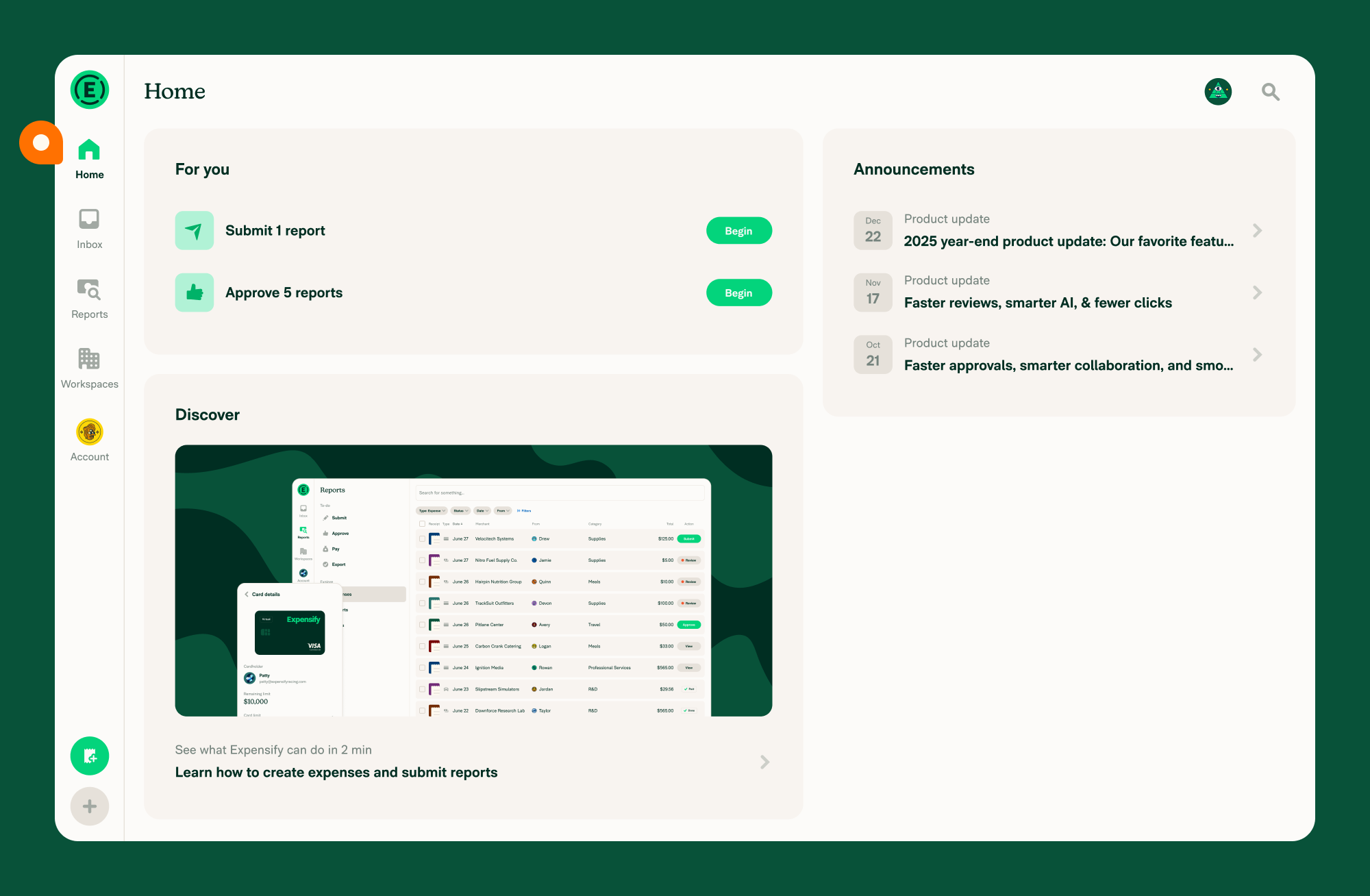
Home is the starting point you see when you sign in to Expensify.
It gives you a quick way to see whether anything needs attention, get oriented, and check what’s new, without having to dig through menus or reports.
Where to find Home
Home is the default view when you sign in.
- Web: Click the Home icon in the navigation tabs on the left to return to Home at any time.
- Mobile: Tap the Home icon in the navigation tabs on the bottom to return to Home.
What Home shows
Home is made up of a small set of sections that summarize what’s happening in your account.
Home includes:
- Time sensitive (when applicable)
- To-dos
- Recently added
- Upcoming travel (when applicable)
- Spend over time and other insights (when applicable)
- Getting started (when applicable)
- Announcements
- Your spend (when applicable)
Each section provides context so you know where to go next.
How the Time sensitive section works on Home
The Time sensitive section appears only when there is something that requires immediate attention. It sits at the top of the same Home card as To-dos, above the To-dos heading.
These alerts appear when:
- A workflow is blocked, such as a broken bank or accounting connection due to expired or invalid credentials
- A bank account is locked, such as a business or personal bank account that has been locked due to a failed debit or bank-side restriction
- A reimbursement is waiting for the payee to add a personal deposit account
- There is potential risk, such as suspected Expensify Card fraud on an active card
- An action must be taken within a short window, such as a limited-time offer or early adoption discount
Alerts are only shown for active Expensify Cards. Deactivated or closed cards do not trigger Time sensitive alerts.
Each Time sensitive row also shows the workspace or page it relates to above the row title, so you can tell which account or workspace needs attention.
If there are no urgent issues, this section will not appear.
How the To-dos section works on Home
The To-dos section highlights items that may need your attention like:
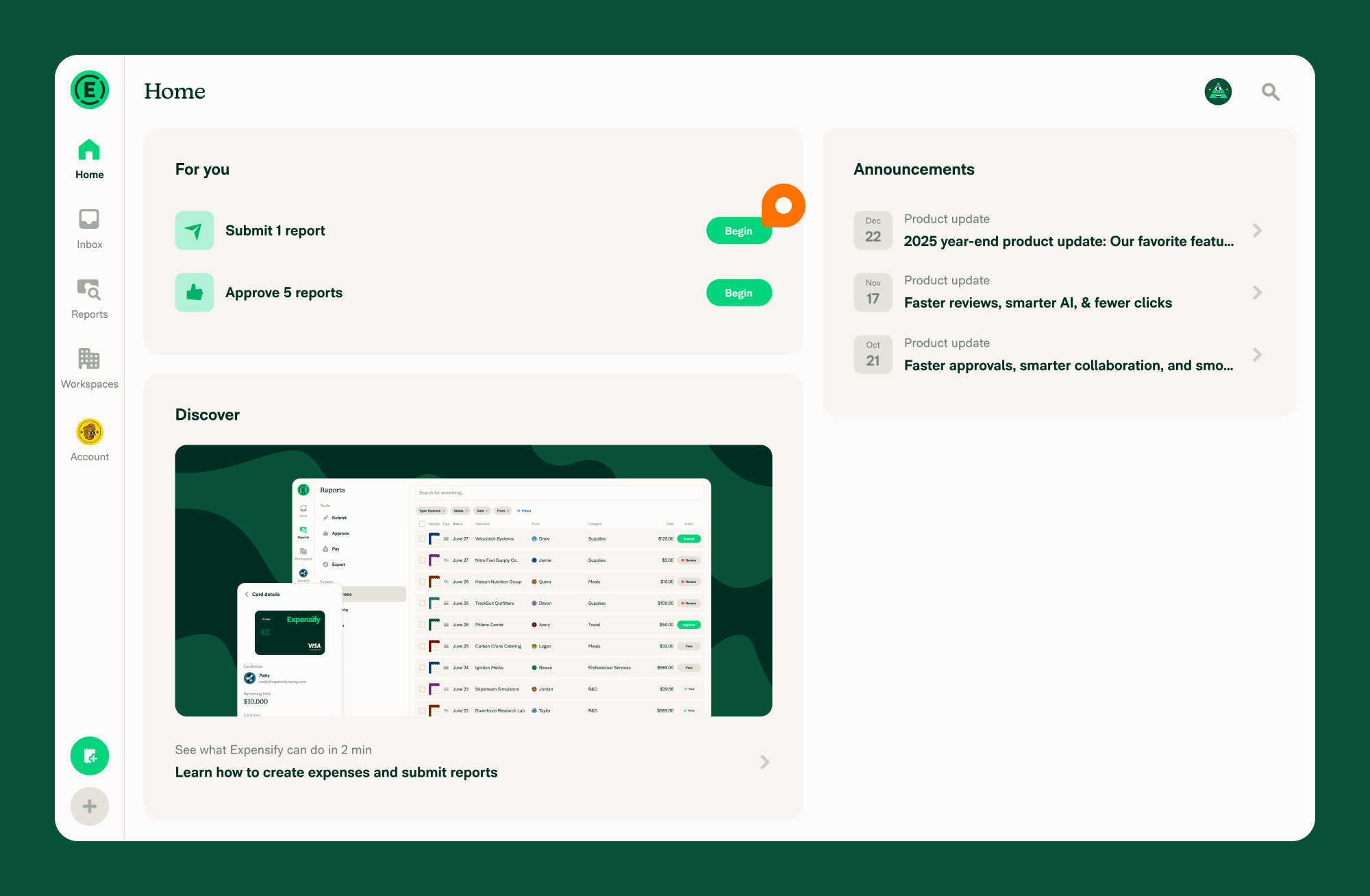
- “1 report to submit”
- “2 reports to approve”
- “Pay 3 reports”
Each item links you to where you can complete the action, such as a specific report or workspace.
If you recently created your account, the To-dos section stays hidden until you have your first to-do to submit, approve, export, or pay.
After the section has appeared, if there’s nothing that needs action, the To-dos section may appear empty. This means you’re fully caught up.
To learn what qualifies as a to-do and where each item takes you, see Learn how the To-dos section works.
How the Upcoming travel section works on Home
The Upcoming travel section shows the trip reservations that start in the next 7 days on trips where you are listed as a traveler.
Each row shows the reservation and when it starts, for example:
- Flight to Lisbon — In 3 days
- Hotel in Lisbon — In 1 week
- Car rental in Lisbon — Today
- Train to Porto — In 1 day
Canceled reservations are left out of this section, so it only lists travel you’re still expected to take. A reservation that is canceled disappears from Upcoming travel but stays in the trip itself, where it’s labeled Canceled.
Select any row to open the full details for that reservation.
You’re listed as a traveler when a booking is made in your name, including bookings a travel arranger makes for you. Trips you booked for someone else don’t appear here, because you aren’t the traveler on those reservations.
To review every trip instead of just the next 7 days, learn how to view upcoming and past trips.
How the Recently added section works on Home
The Recently added section shows your most recently added expenses, so you can quickly get back to what you just created or imported.
- Select any expense to open it.
- To see your full list of expenses, select the three dots (⋮) in the Recently added section, then select View all expenses.
How the Spend over time chart and insights work on Home
The chart section on Home shows one spending insight at a time, starting with Spend over time, which displays a line chart of your workspace spending trends.
Select the insight title (with the chevron next to it) to open the insight picker, then choose a different insight to show in the chart. The available insights match the ones you can open under Spend, and can include:
- Spend over time
- Top categories
- Top merchants
- Top spenders
Your selection is saved, so the chart shows the same insight the next time you return to Home, even after you sign out and back in.
To open the selected insight in full, select the three dots (⋮), then select View. This takes you to that insight on the Spend page.
This section is available to Workspace Admins, Auditors, and approvers on paid workspaces. If an insight doesn’t have enough data yet to draw a chart, the section still appears and shows a Chart unavailable message instead. If you don’t hold one of these roles on any workspace, this section won’t appear.
To learn more about each insight, see Learn how to use Insights in Expensify.
How the Getting started section works on Home
The Getting started section shows a checklist of key setup tasks and appears only under certain conditions during onboarding.
The checklist items vary based on the intent selected when setting up your Expensify account.
How the Announcements section works on Home
The Announcements section shows recent Expensify product updates.
This section helps you stay informed about what’s new or recently changed in New Expensify.
How the Your spend section works on Home
The Your spend section gives you a quick summary of your recent card spending and the money moving through your account.
It can include:
- Awaiting approval — the total amount of your reimbursable expenses that are waiting for approval.
- Repaid last 30 days — the total amount reimbursed to you in the last 30 days.
- Recent transactions • 1234 — a row for each card showing recent spending activity and the last four digits of the card number.
Select any row to open the matching expenses on the Spend page.
If you have no recent card spending and no expenses awaiting approval or repaid in the last 30 days, the Your spend section won’t appear.
FAQ
What is Home for?
Home helps you get oriented when you sign in. It shows whether anything needs attention, highlights what’s new, and points you to the right place—like Inbox or Spend—if you need to take action.
Is Home the same as Inbox?
No, they serve different purposes. Home provides an overview of what needs attention and what’s new. Inbox is where conversations and action-related items are managed.
Can actions be completed from Home?
Not directly. Home links you to other parts of Expensify where actions are completed.
Why does the To-dos section sometimes appear empty?
If there are no current financial to-dos, the To-dos section may appear empty. This means there’s nothing that requires action at that time. The caught-up message only appears when both To-dos and Time sensitive are empty.
Why don’t I see the To-dos section at all?
If you recently created your account, the To-dos section stays hidden until you have your first to-do to submit, approve, export, or pay. After your first to-do appears, the section stays on Home—even when you’re caught up and it’s empty.
How does the Recently added section decide what to show?
The Recently added section shows up to five of your most recently added expenses, ordered by when each one was added to Expensify rather than by the expense date. An expense you add today appears at the top even if its date is in the past.
Why is the Recently added section empty?
The Recently added section always appears on Home. If you haven’t added any expenses yet, it shows an empty state. Create an expense or drag a receipt onto it, and your expense will appear here.
Why don’t I see the Time sensitive section?
The Time sensitive section only appears when there is an urgent issue or limited-time action that requires attention. If everything is up to date, this section will not be visible.
Why don’t I see the Spend over time section?
The Home chart section only appears if you are a Workspace Admin, Auditor, or approver on a paid workspace. If you don’t hold one of these roles on any workspace, this section won’t be visible. If you do hold one of these roles but an insight doesn’t have enough data yet, the section still appears and shows a Chart unavailable message rather than disappearing. You can switch which insight the chart shows using the insight title dropdown.
Why don’t I see the Getting started section?
The Getting started section only appears if you selected the manage my team, track and budget my expenses, or Organize my personal spending intent during onboarding and you are within 60 days of your free trial start date. If any of these conditions are not met, the section won’t be visible.
Why don’t I see the Your spend section?
The Your spend section only appears when at least one of the following applies:
- You have submitted expenses awaiting approval on a workspace with an approval workflow enabled
- You have reimbursable expenses that were repaid in the last 30 days on a workspace with payments enabled
- You have an active Expensify Card assigned to you
If none of these conditions are met, the Your spend section won’t be visible.


