


Connect to Zoho Books
Connect to Zoho Books
Connect Zoho Books to your Expensify workspace to import accounting data and export expenses. Each workspace connects to one Zoho Books organization.
Who can connect to Zoho Books
To connect Zoho Books, you must:
- Be a workspace admin on a Collect or Control workspace.
- Have access to a Zoho Books organization on the Professional plan or higher.
- Use a single-location organization. Organizations with more than one active location aren’t supported yet.
- Be able to sign in to Zoho and authorize the connection.
How to connect Zoho Books to Expensify
- In the navigation tabs (on the left on web, on the bottom on mobile), select Workspaces > [workspace name] > Connections.
- Select Zoho Books.
- If an existing connection is offered, select it to reuse it, or select Create new connection to authorize another connection.
- Follow the prompts to sign in to Zoho and authorize the connection to Expensify.
- After connecting, select Configure next to Zoho Books to review the connected organization.
Expensify selects an eligible organization automatically. If more than one organization is available, select Zoho Books organization in the connection settings to choose the one to use.
What happens after you connect to Zoho Books
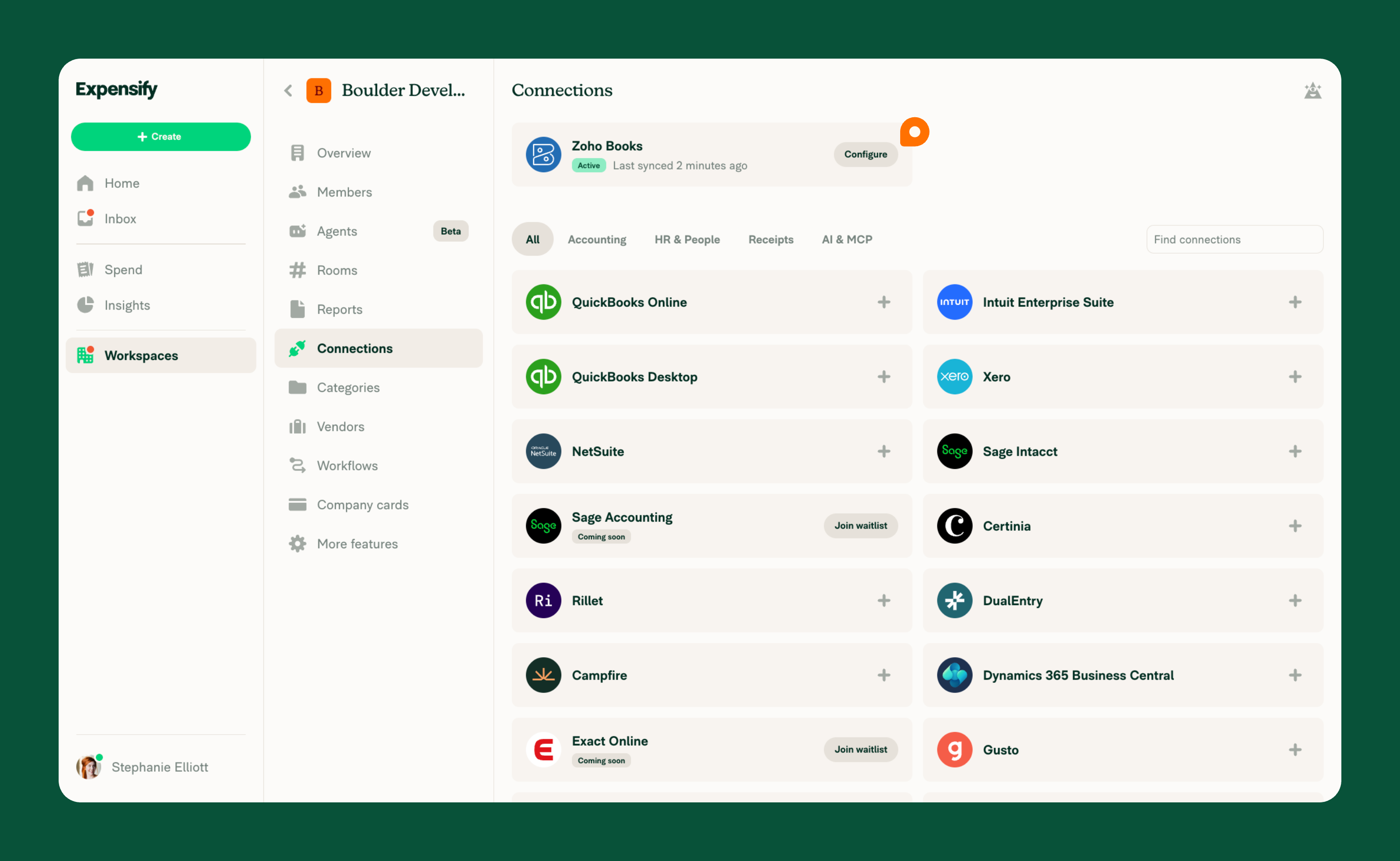
Once connected, Zoho Books appears on the Connections page with an Active badge.
Select Configure to view:
- The connection status and last sync timestamp.
- The connected Zoho Books organization.
- The Import, Export, and Advanced settings.
Learn how to configure Zoho Books import, export, and advanced settings.
How to reconnect Zoho Books
If the connection requires authorization again:
- Select Workspaces > [workspace name] > Connections.
- Select Fix next to Zoho Books.
- Select More (⋮), then Enter your credentials.
- Follow the prompts to sign in to Zoho and authorize the connection again.
For a connected organization that doesn’t require reauthorization, select More (⋮) > Sync now to refresh its accounting data.
How to disconnect Zoho Books
- Select Workspaces > [workspace name] > Connections.
- Select Configure next to Zoho Books.
- Select More (⋮) > Disconnect.
- Follow the prompts to confirm.
Disconnecting stops future synchronization with Zoho Books for this workspace.


