


Configure Zoho Books
Configure Zoho Books
Configure how Expensify imports accounting data from Zoho Books, exports expenses, and syncs payments and settlements.
If you haven’t connected your organization yet, learn how to connect to Zoho Books.
Where to find Zoho Books configuration settings
Only workspace admins can configure the connection.
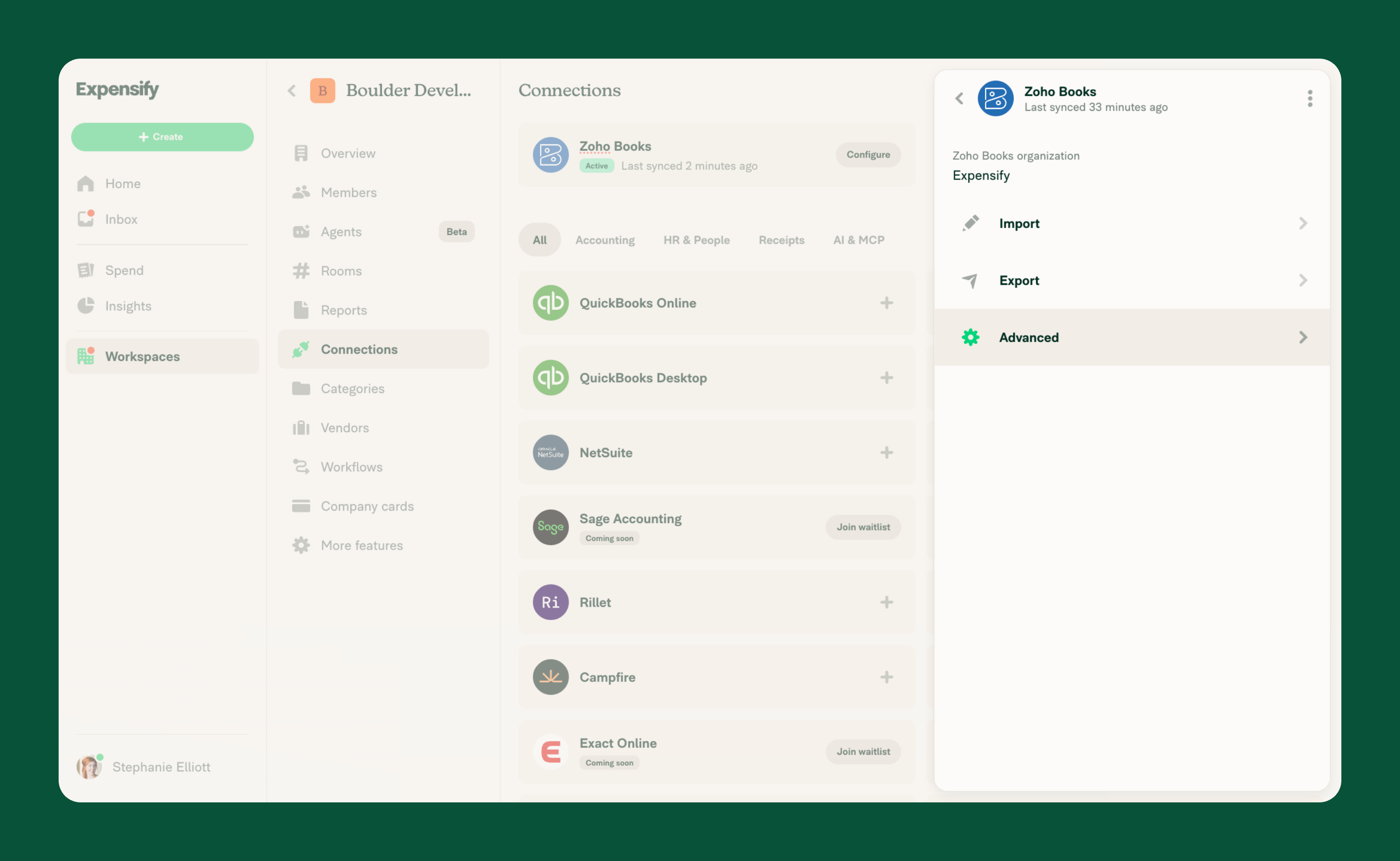
- In the navigation tabs (on the left on web, on the bottom on mobile), select Workspaces > [workspace name] > Connections.
- Select Configure next to Zoho Books.
- Select Import, Export, or Advanced.
How to configure Zoho Books import settings
Select Import to configure:
- Chart of accounts – Imports active expense, cost of goods sold, other expense, other current asset, and fixed asset accounts as categories. This setting is always enabled.
- Enable newly imported accounts – Controls whether accounts added by later syncs become enabled categories. This defaults to off. Categories from the initial import are enabled.
- Reporting tags – Enable the individual Zoho Books reporting tags you want to import as Expensify tags. These imports default to off.
- Tax rates – Enable this to import Zoho Books tax rates. This option only appears when tax rates are available in Zoho Books, and is off by default.
How to configure Zoho Books export settings
Select Export to configure:
- Preferred exporter – Select the workspace admin responsible for exporting reports.
- Export reimbursable expenses as – Reimbursable expenses export as Vendor bills, grouped by report using the employee’s Zoho Books vendor.
- Vendor bill date – Choose whether to use the Date of last expense, Export date, or Submitted date as the vendor bill date when exporting reports to Zoho Books.
- Export company card expenses as – Non-reimbursable expenses export as Expenses. Each non-reimbursable expense creates a separate expense in Zoho Books.
- Default vendor for all company cards – Optionally select a Zoho Books vendor to use when an expense has no vendor assigned.
- Company card account – Select an active Zoho Books bank or credit card account for company card expenses.
Note: For reimbursable expenses, the employee must exist as a vendor in Zoho Books with an email address matching their Expensify email address. The vendor and exported bill must also use the same currency.
Learn how to manage Zoho Books vendor matching.
How to export company card expenses to multiple Zoho Books accounts
Use different accounts for individual card programs or cards when you don’t want all card expenses to use the workspace default.
- In the Zoho Books configuration settings, select Export.
- Enable Configure exporting to multiple accounts. This setting appears when the workspace has active company cards.
- Select Card program account to choose an account for a card program or feed.
- Select Per-card account to choose an account for an individual card.
How to configure Zoho Books automatic exports
- In the Zoho Books configuration settings, select Advanced.
- Enable Auto-sync.
- Select Export method and choose when reimbursable expenses should export:
- Accrual – After final approval.
- Cash – After payment.
Auto-sync refreshes accounting data daily and automatically exports reports. You can still export reports manually when needed.
How to sync reimbursed reports with Zoho Books
- In the Zoho Books configuration settings, select Advanced.
- Enable Sync reimbursed reports.
- If you reimburse through Expensify, select Bill payment account and choose an active Zoho Books bank or cash account.
For reports reimbursed through Expensify by ACH, Expensify records a bill payment against the exported Zoho Books bill. A bill payment account is required to record these payments.
How to sync Expensify Card settlements to Zoho Books
- In the Zoho Books configuration settings, select Advanced.
- Enable Sync Expensify Card settlements.
- Select Expensify Card settlement account and choose the active USD bank or cash account used for settlements.
This setting appears after Expensify Card is fully set up. Expensify records settlements as bank transactions in Zoho Books. The other side uses the Expensify Card program account, or the workspace Company card account if no program override is selected.
How to sync Consolidated Travel Billing settlements to Zoho Books
- In the Zoho Books configuration settings, select Advanced.
- Enable Sync Consolidated Travel Billing settlements.
- Select Consolidated Travel Billing settlement account and choose the active USD bank or cash account used for settlements.
- Select Consolidated Travel Billing payable account and choose the credit card or other current liability account used for Travel amounts owed.
These settings appear when Consolidated Travel Billing is enabled. Expensify records Travel settlements as journal entries between the payable and settlement accounts. These account selections are separate from your reimbursement account.
FAQ
Why aren’t newly imported Zoho Books accounts enabled as categories?
The Enable newly imported accounts setting is off by default. Accounts imported during the initial sync are enabled as categories, but accounts added during later syncs aren’t automatically enabled unless you turn on this setting.
Why can’t I import tax rates from Zoho Books?
The Tax rates setting only appears when tax rates are available in your connected Zoho Books organization. When available, you must enable the setting to import them into Expensify.
Why aren’t reimbursable expenses exporting to Zoho Books?
Each employee submitting reimbursable expenses must exist as a vendor in Zoho Books with an email address matching their Expensify email address. The vendor and exported bill must also use the same currency.
Learn how to manage Zoho Books vendor matching.
What’s the difference between Accrual and Cash exports in Zoho Books?
The Export method setting determines when reimbursable expenses automatically export to Zoho Books:
- Accrual – Exports after final approval.
- Cash – Exports after payment.
Can I manually export reports when Zoho Books auto-sync is enabled?
Yes. Enabling Auto-sync automatically exports reports and refreshes accounting data daily, but you can still export reports manually when needed.
Which Zoho Books account does Expensify use when exporting company card expenses?
Expensify uses the following order to determine which Zoho Books account receives each company card expense:
- Per-card account – The account assigned to the individual card.
- Card program account – The account assigned to the card program or feed.
- Company card account – The workspace default account, used when no card-specific or program-specific account is assigned.
What happens if I disable Configure exporting to multiple accounts?
Disabling Configure exporting to multiple accounts hides the Card program account and Per-card account settings but doesn’t remove previously selected account overrides.
Review your card program and individual card account selections when changing how company card expenses export to Zoho Books.


