


Cancel an Annual Subscription
Cancel an Annual Subscription
If you’re a Workspace owner, you can request to end your workspace’s Annual subscription and continue on Pay-per-use billing instead. Canceling the Annual subscription ends the 12-month commitment but doesn’t delete your workspace or interrupt access. Your workspace continues on Pay-per-use billing.
Most Annual subscriptions can’t be canceled before the end of the 12-month commitment. Selecting Cancel subscription submits a request that Expensify reviews. Only requests that meet the cancellation criteria are approved.
For more details, see When You Can Change Your Subscription.
Who can request Annual subscription cancellation
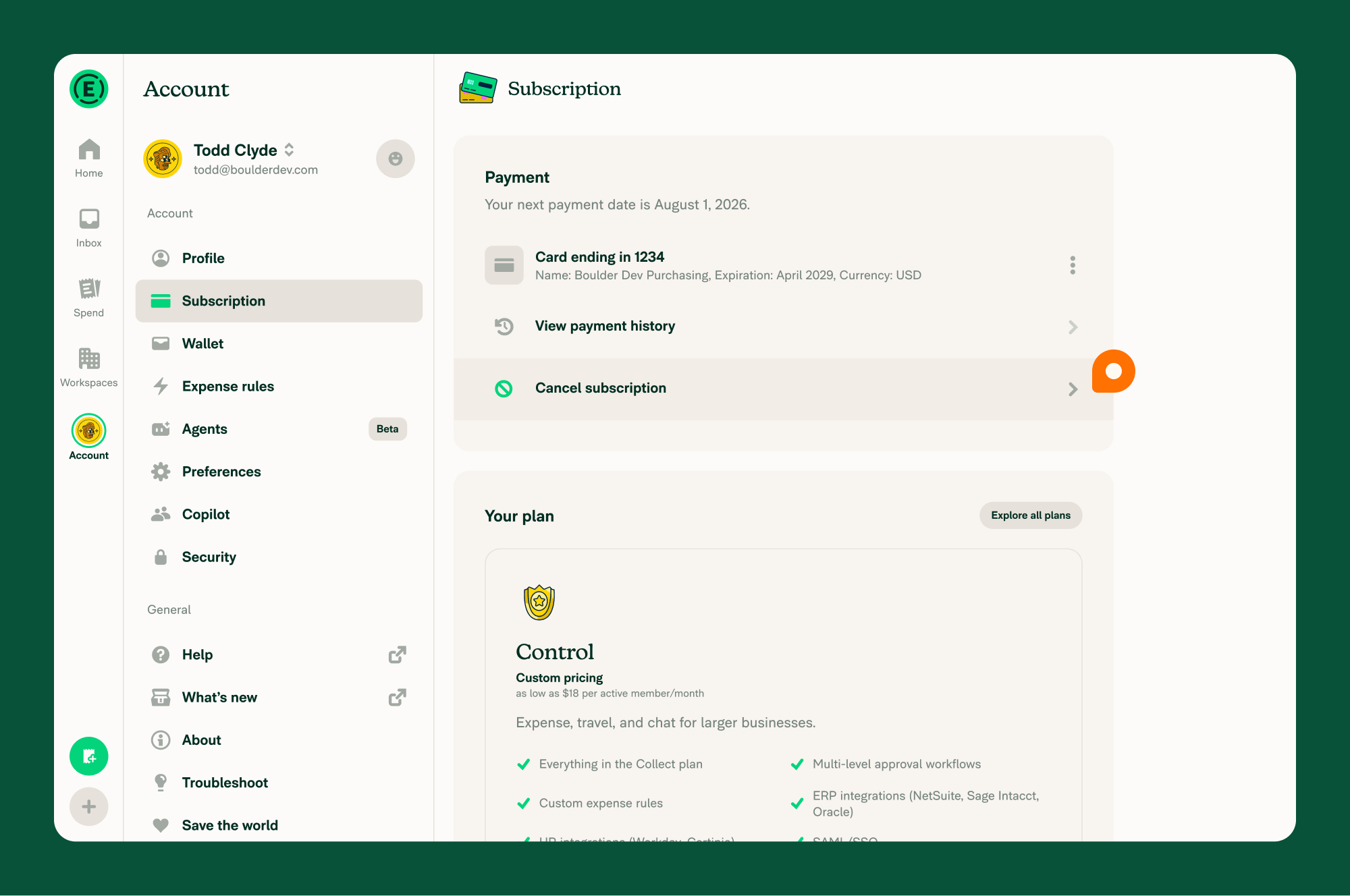
Only the Workspace owner can request a cancellation, and only when the workspace is on an Annual subscription. Cancel subscription appears under Account > Subscription after your free trial ends and once a payment card has been added or you’ve been billed at least once.
If your workspace is already on Pay-per-use, there’s no subscription to cancel. To stop billing in that case, delete the workspace instead.
How to request Annual subscription cancellation
- In the navigation tabs (on the left on web, at the bottom on mobile), go to Account > Subscription.
- Select Cancel subscription.
- Choose the main reason you’re canceling and add the requested details.
- Review the acknowledgment that submitting the form requests cancellation and that approval is not guaranteed, then Submit.
When Expensify approves an Annual subscription cancellation request
Your request may be approved automatically when all of the following are true:
- You’ve only been billed once for the Annual subscription.
- You have no outstanding balance.
If your request is approved automatically, you’ll see a Subscription canceled confirmation right away. Any request that doesn’t meet these conditions is reviewed manually and you’ll see a Request submitted message instead—we’ll follow up through your chat with Concierge.
What happens after your Annual subscription is canceled
Once the Annual subscription is canceled, your workspace continues automatically on Pay-per-use and is billed month-to-month. You don’t need to take any other action to switch.
Canceling does not stop future charges. As long as the workspace exists, you’ll be billed for any active members each month. To prevent all future activity and charges, delete the workspace—note that you’ll still be billed for any activity already incurred during the current calendar month.
What happens if your Annual subscription cancellation request isn’t approved
Annual subscriptions are a 12-month commitment. Expensify may approve cancellation requests if you’ve only been billed once for the Annual subscription and have no outstanding balance. Otherwise, the subscription remains in effect for the rest of the commitment.
If your request isn’t approved, you’ll continue to be billed for the remainder of your Annual subscription term. If you no longer want to manage the workspace, another workspace admin can transfer ownership to themselves. Transferring ownership doesn’t cancel the subscription or change the remaining billing commitment. Learn how to transfer workspace ownership.
FAQ
Does canceling my Annual subscription delete my workspace or data?
No. Canceling only ends the annual commitment. Your workspace, expenses, and reports remain, and the workspace continues on Pay-per-use.
What’s the difference between the “Subscription canceled” and “Request submitted” messages?
Subscription canceled means your request met the conditions for automatic approval and is already done. Request submitted means our team is reviewing your request and will respond through Concierge.
How do I stop being billed entirely?
Delete the workspace to stop future billing. Canceling an Annual subscription only switches the workspace to Pay-per-use, where monthly charges continue while the workspace remains active.


