


Add or Update a Payment Card
Add or Update a Payment Card
Your Expensify subscription is paid using a single payment card stored under Account > Subscription. Add a payment card when you first start paying for Expensify, or update it if your card expires or you want to use a different card.
Who can add or update a payment card
Only workspace owners can add a payment card or update an existing one. If you’re not the Workspace owner, the Subscription tab won’t appear under Account.
How to add a payment card
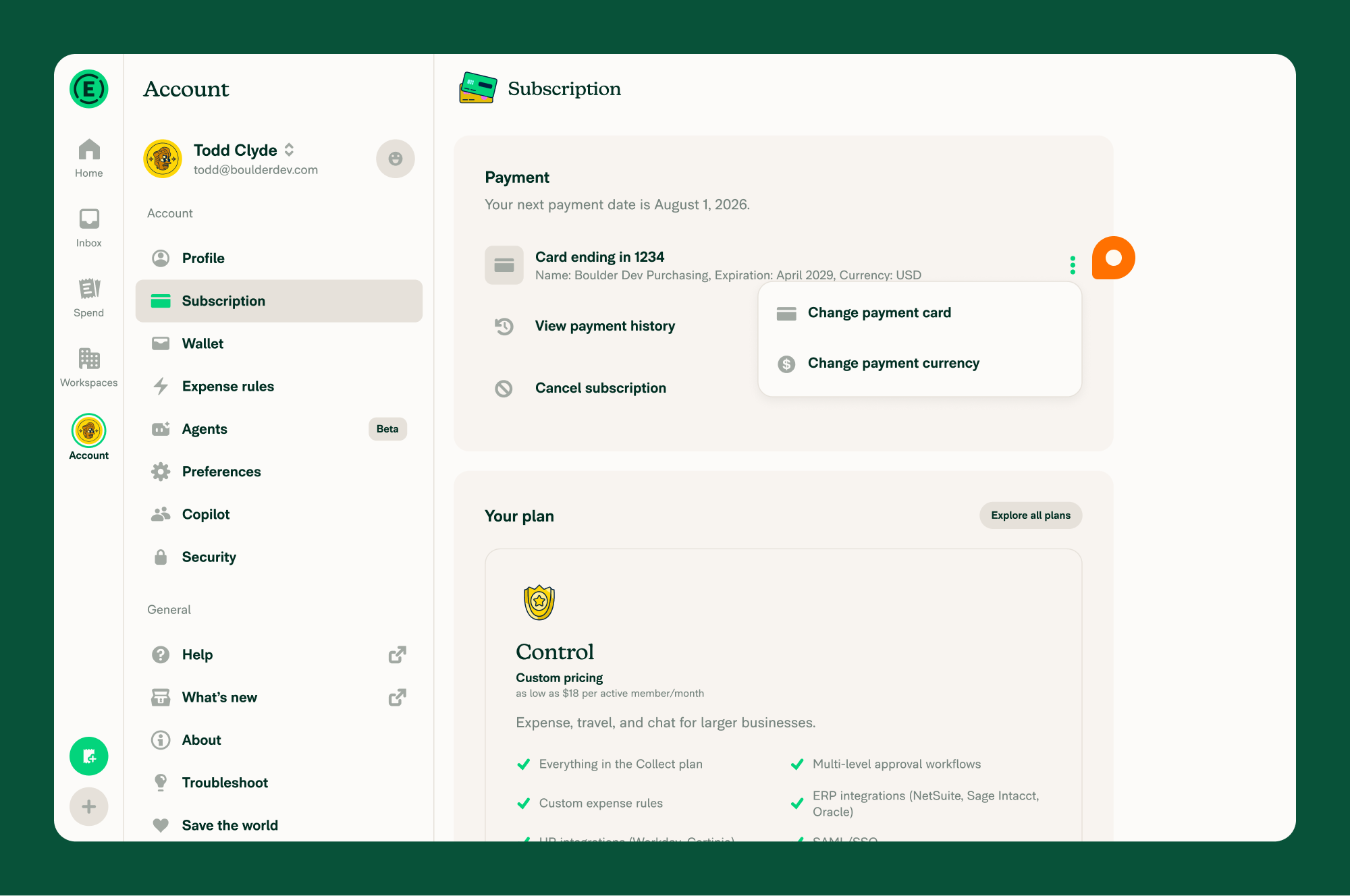
- In the navigation tabs (on the left on web, on the bottom on mobile), go to Account > Subscription.
- In the Payment section, select Add card.
- Enter your payment card details.
- Accept the terms and select Add payment card.
Your payment card is saved and will be used for future Expensify subscription charges.
How to replace the payment card on file
To replace an existing card:
- In the navigation tabs (on the left on web, on the bottom on mobile), go to Account > Subscription.
- In the Payment section, select the three dots (⋮), then select Change payment card.
- Enter the new credit card details.
- Select Add payment card.
The new payment card replaces the previous one and will be used for future Expensify subscription charges.
Related articles
FAQ
Why don’t I see the option to add or change a payment card?
Only the Workspace owner can manage the payment card. If the Subscription tab or the Payment section isn’t visible, you’re not a Workspace owner.
Do I need to remove my old card before adding a new one?
No. Selecting Change payment card and entering new details replaces the card on file automatically.
Can I pay for my Expensify subscription using ACH?
No. Expensify subscriptions can only be paid using a payment card. ACH and other bank account payment methods aren’t supported for subscription payments.


