


Import Merchant Rules
Import Merchant Rules using a spreadsheet
Importing a spreadsheet lets Workspace Admins create many Merchant Rules at once instead of adding them one at a time. Map each column in your file to a merchant rule field, and Expensify creates a rule for every row so matching expenses are automatically coded.
Who can import Merchant Rules
To import Merchant Rules, you must be:
- A Workspace Admin.
- On a workspace with Rules enabled (available on the Control plan).
If Rules is not enabled, learn how to enable Workspace Rules.
How to import Merchant Rules using a spreadsheet
Prepare a spreadsheet where each row is one rule. Include a column for the merchant to match and a column for each field you want the rule to update (for example, Tag).
- In the navigation tabs (on the left on web, on the bottom on mobile), click Workspaces > [workspace name].
- Select Rules.
- Select More, then choose Import merchant rules.
- Drag and drop your spreadsheet into the window, or select Choose file to upload your spreadsheet.
- Map each column to a merchant rule field. Map the merchant column to Merchant is or Merchant contains, and map at least one field to update, such as Updated merchant, Updated category, Updated tag, or Updated description.
- Select Import.
You must map at least one Merchant is or Merchant contains column plus at least one field to update, or the import can’t complete.
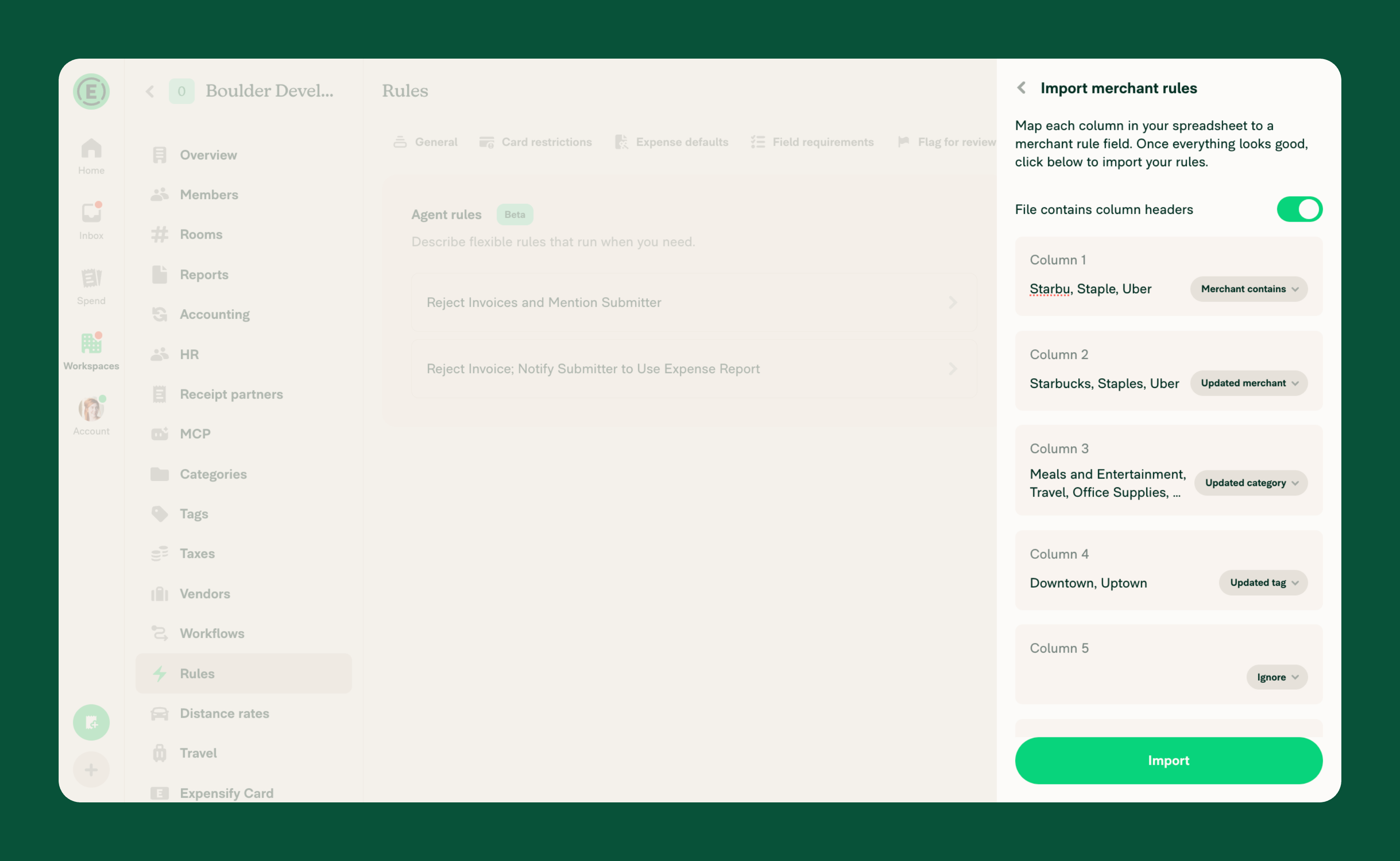
How Tag values are interpreted when importing Merchant Rules
How a colon in a Tag cell is read depends on how your workspace tags are set up at the time of import, so set up your tags before importing. Learn more about expense tags.
- Workspace with multi-level tags: A colon separates tag levels. A Tag cell of
Parent: Childis imported as a multi-level tag with the first level set toParentand the second level set toChild. Any spaces around the colon are trimmed. - Workspace with a single-level tag list: A colon is part of the tag name. A Tag cell of
ab:cdis imported as one tag namedab:cd.
What happens after you import Merchant Rules
- A confirmation message shows how many Merchant Rules were added.
- Each new rule appears on the Expense defaults tab of the Rules page and is applied to matching expenses going forward.
FAQ
Why did some rows not import as Merchant Rules?
A row is skipped when it duplicates an existing rule, or when the required columns aren’t mapped. Make sure you mapped a Merchant is or Merchant contains column plus at least one field to update.
Why did my imported Tag value display differently than expected?
Tag cells are interpreted based on your workspace tag setup at the time of import. On a workspace with multi-level tags, a colon splits the value into tag levels; on a workspace with a single-level tag list, the colon stays part of the tag name. Set up your tags before importing so the values are read the way you intend.
Can I import Merchant Rules on mobile?
Yes. You can import Merchant Rules on both web and mobile from the Rules page. On a smaller screen you choose the file rather than drag and drop it.


