


How to Duplicate an Expense
How to duplicate an expense
You can create a copy of one or more expenses using Duplicate expense. This generates new expenses with the same details as the originals, including the merchant, amount, category, tags, and tax. The date is set to today and receipt images are not copied. An expense that is on a report is copied onto your primary workspace, while an Unreported expense is copied onto your personal space.
This is useful when you need to create similar expenses quickly without re-entering all the details manually. You can duplicate a single expense or select multiple expenses and duplicate them all at once.
Note: Card expenses cannot be duplicated. Only cash, distance, and per diem expenses are eligible to be duplicated.
Who can duplicate an expense
Anyone can duplicate their own expenses. Duplicate expense is available for cash, distance, and per diem expenses in any status, including Unreported, Draft, Processing, Approved, Paid, and Deleted.
Card expenses (company cards and Expensify Cards) cannot be duplicated.
How to duplicate a single expense
- In the navigation tabs (on the left on web, on the bottom on mobile), select Spend > Expenses
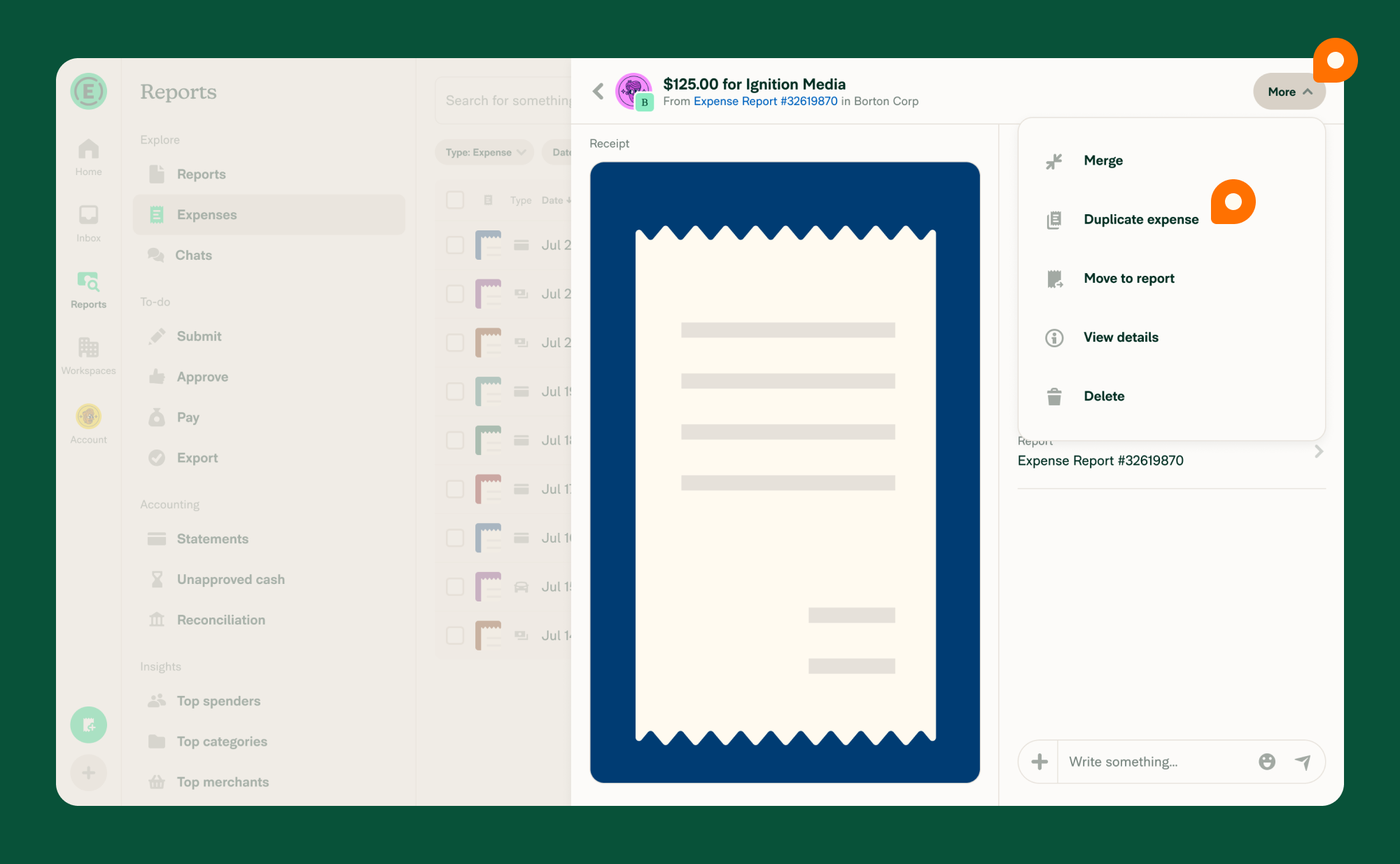
- Click to open the eligible expense you want to duplicate.
- Select More.
- Choose Duplicate expense.
How to duplicate multiple expenses at once
You can select multiple eligible expenses and duplicate them all in one action.
On web:
- In the navigation tabs on the left, click Spend > Expenses.
- Select two or more cash, distance, or per diem expenses that you created.
- Click Selected, then Duplicate expenses.
On mobile
- In the navigation tabs on the bottom, tap Spend > Expenses.
- Long-press an expense, then tap Select to enter selection mode.
- Select two or more cash, distance, or per diem expenses that you created.
- Tap Selected, then Duplicate expenses.
Each selected expense is duplicated individually. The same rules apply as for single duplication — card expenses, scanning expenses, per diem expenses without dates, and expenses you did not submit are excluded from selection.
What happens after you duplicate an expense
The duplicate expense keeps the original expense’s merchant, amount, category, tags, tax, and billable or reimbursable status. The date is set to today and receipt images are not included.
The duplicate matches the reported state of the original. If the original expense is on a report, the copy is created on your primary workspace. If the original is an Unreported expense, the copy is created on your personal space and is not added to a report.
If the original expense’s coding (such as categories or tags) is not available on your primary workspace, the duplicate expense will still be created. You will be prompted to correct the coding on the expense.
Why the duplicate option is unavailable for some per diem or distance expenses
Per diem and distance expenses use rates that are specific to each workspace. If your primary workspace has different rates than the workspace where the original expense lives, duplicating would apply incorrect rates.
When this restriction applies, Expensify will display a message explaining that the expense cannot be duplicated across workspaces because rates may differ.
FAQ
Can I duplicate a card expense?
No. Expenses from company cards or Expensify Cards cannot be duplicated. Only cash, distance, and per diem expenses support duplication.
Does the duplicated expense include the receipt image?
No. Receipt images are not copied to the duplicate expense. You will need to attach a new receipt if one is required.
Why is Duplicate not showing in the menu?
Duplicate expense only appears when the expense is a cash, distance, or per diem expense that you created. It will not appear if:
- The expense was created by someone else.
- The expense is imported from a company card or Expensify Card
- A receipt is currently being scanned
- For per diem expenses, if start or end dates are missing


