


View and Reconcile Expensify Card Expenses
View and Reconcile Expensify Card Expenses
Expensify Card reconciliation helps you match each bank withdrawal (also known as a settlement) to the group of card expenses it covers. You can review and verify these withdrawals directly in Expensify.
Who Can Reconcile Expensify Card Expenses
Workspace Admins can reconcile Expensify Card expenses when the Expensify Card is enabled on the Workspace.
How to View Expensify Card Withdrawals
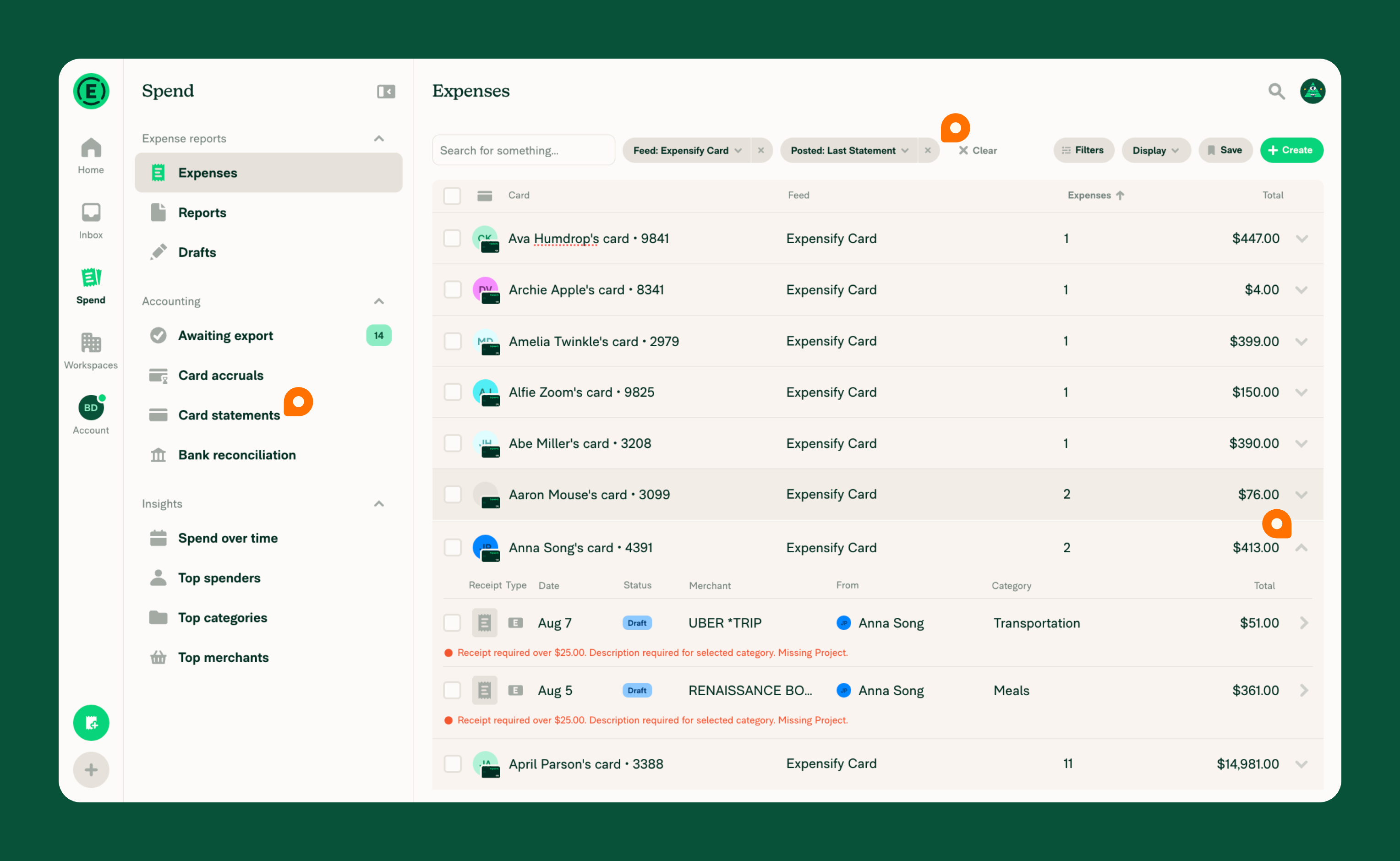
- Click the navigation tabs (on the left on web, on the bottom on mobile) and go to Spend.
- In the Reconciliation section, select Expensify Card.
- Choose the Withdrawn filter to select a date range (for example, Last month).
- Review the list of withdrawals. Each row represents a single settlement withdrawal from your bank account.
How to View Expenses Included in an Expensify Card Withdrawal
- From the Expensify Card reconciliation view, locate the withdrawal you want to review.
- Click the arrow next to the withdrawal amount to expand the row.
- Review the individual expenses included in that withdrawal.
How to View the Transactions That Make Up Your Expensify Card Current Balance
The Current balance on the Expensify Card page reflects the card expenses that have not yet been withdrawn from your settlement account. You can open a filtered list of those transactions directly from the Expensify Card page.
- From the navigation tabs (on the left on web, on the bottom on mobile), select Workspaces > [Workspace Name] > Expensify Card.
- Under the Current balance amount, click View transactions.
- Review the filtered results, which show the card expenses counted toward the current balance.
How to Verify Expensify Card Withdrawal Totals Against Your Bank Statement
- On your bank statement, locate Expensify Card settlement charges.
- From the reconciliation view, find the matching withdrawal.
- Compare the withdrawal total to the bank charge.
- If the totals match, the withdrawal is reconciled.
- If the totals do not match, expand the withdrawal to review individual expenses and identify discrepancies.
How to Export Expensify Card Expenses
- From the Expensify Card reconciliation view, select the expenses you want to export using the checkboxes.
- In the bar that appears at the bottom of the results, click Export. If you don’t see it, click More first.
- Choose an export template to download the results as a CSV file.
How to Download an Expensify Card Statement PDF
From the Expensify Card reconciliation view, you can download a PDF statement for one or more settlements. The statement includes the transactions and payments for each selected settlement.
- From the Expensify Card reconciliation view, select one or more whole settlements using the checkboxes. To select an entire settlement, either check a collapsed settlement row or expand the settlement and check every transaction within it.
- In the bar that appears at the bottom of the results, click Download statement. If you don’t see it, click More first.
- Wait for the statement to generate, then the PDF downloads automatically.
Keep the following in mind:
- All selected settlements must belong to the same Expensify Card feed. If you select settlements from more than one feed, you’ll see the message Please select settlements from one Expensify Card feed at a time. and no statement is generated.
- Download statement appears only when whole settlements are selected. It does not appear when you select only some of the transactions inside a settlement.
- If you apply a filter that narrows the transactions (such as merchant, category, amount, or date), Download statement is hidden so the statement always matches the settlement in full.
- Filtering by Bank account keeps Download statement available. Each settlement is withdrawn from a single bank account, so this filter keeps or removes whole settlements rather than narrowing the transactions inside one. This is useful for isolating an Expensify Card program that settles to its own bank account.
- With no workspace filter applied, the statement covers the entire settlement across every workspace it spans. If you apply a single workspace filter, the statement is scoped to that workspace’s transactions only.
FAQ
Why is Expensify Card not showing under Reconciliation?
The Expensify Card option only appears when the feature is enabled for your Workspace. If you don’t see it, confirm that the Expensify Card is enabled and active.
How is Expensify Card reconciliation different from statement matching?
Expensify Card reconciliation uses withdrawal-based matching, where each bank withdrawal corresponds to grouped expenses. Company card reconciliation uses statement matching, where transactions are compared against an external card statement.
Why don’t I see any withdrawals in the Expensify Card reconciliation view?
If you don’t see any withdrawals, adjust the Withdrawn filter and select a different date range.
Why don’t I see Download statement when I select a settlement?
Download statement appears only for Workspace Admins with export access to the settlement. It’s also hidden if you selected only part of a settlement, if a transaction-narrowing filter (such as merchant, category, or amount) is active, or if you’re using select-all-matching mode instead of selecting the settlement rows.
Can I download a statement for one Expensify Card program?
Yes. If each program settles to its own bank account, apply the Bank account filter for that account to show only its settlements, then select the settlements and click Download statement. The Bank account filter keeps Download statement available because it selects whole settlements rather than narrowing the transactions inside them.
Can I download a statement for a failed or pending settlement?
Yes. Failed and pending settlements can be downloaded, and the statement labels each settlement’s status.
Can I download a statement while offline?
No. You’ll see an offline message and no statement is generated. Reconnect to the internet and try again.


