


Domain Admins
Domain Admins
Domain Admins manage your company’s domain settings in Expensify. They can claim domains, verify domain ownership, manage domain members, and configure domain-level security settings (like SAML SSO).
How to add a Domain Admin
- Go to Workspaces, then select the Domains tab.
- Select your domain.
- Select Domain admins.
- Enter the admin’s email address or phone number, then click Add.
Note: A Domain Admin does not need an email address on the company domain. For example, an external bookkeeper can be a Domain Admin.
How to review an admin access request
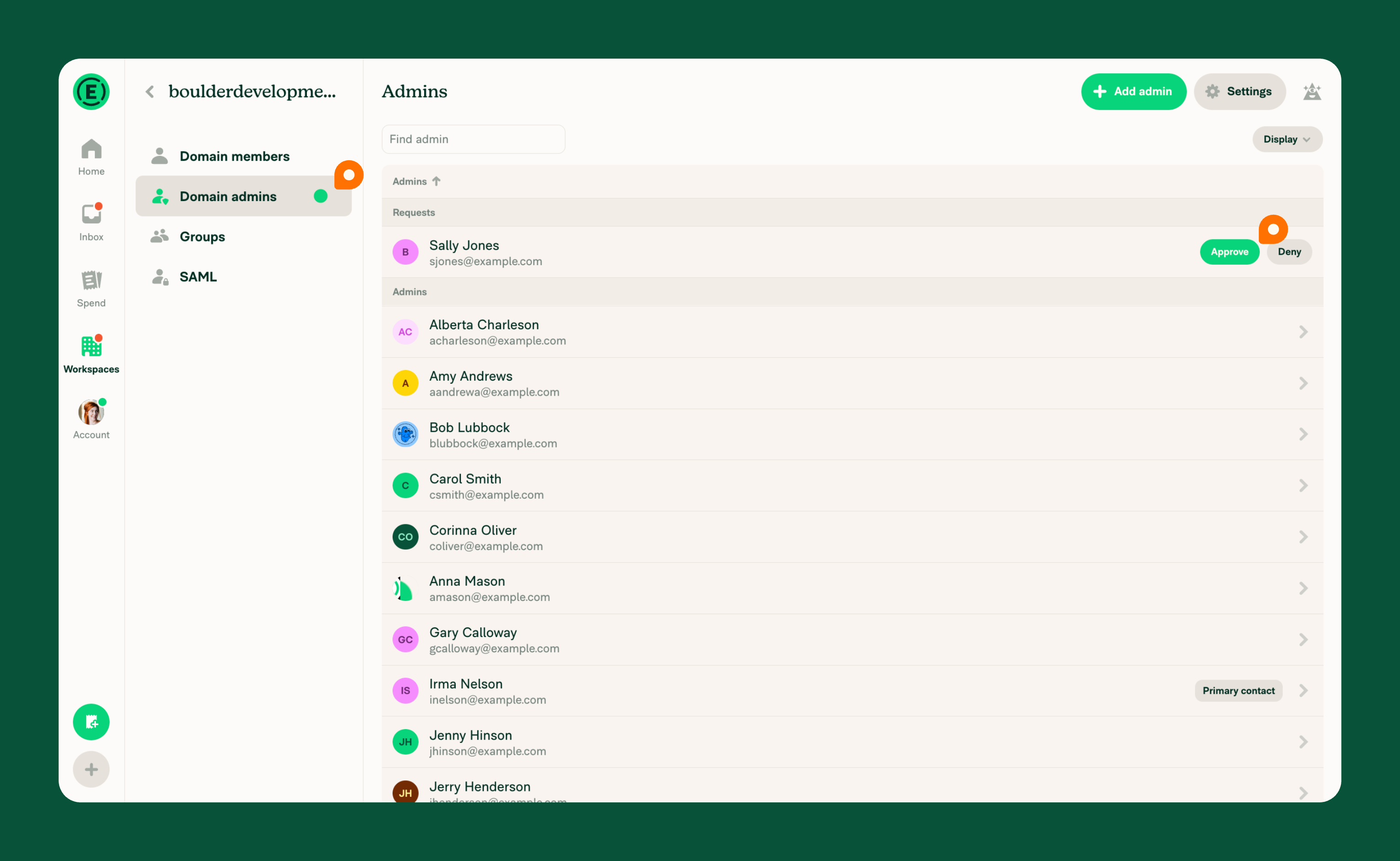
Members can request admin access to a domain instead of waiting for a Domain Admin to add them. When a request is pending, a green dot appears next to Domain admins.
To action the request:
- Select Domain admins.
- Find the pending request under Requests.
- Choose Approve to grant admin access or Deny to reject the request.
How to remove a Domain Admin
- Go to Workspaces, then select the Domains tab.
- Select your domain.
- Open Domain admins.
- Select the admin, then click Remove.
FAQ
Do I need to verify my domain to add Domain Admins?
No. You can add Domain Admins after you claim the domain. Verification is required to enable advanced features like SAML and to manage domain members.
Can I have multiple Domain Admins?
Yes. There’s no limit to the number of Domain Admins you can assign. We recommend giving access to multiple people in case someone becomes unavailable.
Can I add a Domain Admin who doesn’t have a company email?
Yes. Domain Admins do not need to use your company’s email domain. You can add personal emails, contractors, or partners as Domain Admins if needed.
How do I revoke Domain Admin access?
Go to Workspaces, then select the Domains tab, open your domain, and select Domain admins. From there, click Remove next to the person you want to revoke access for.
Who can be a Domain Admin
You can add any Expensify user as a Domain Admin, regardless of whether they use your private domain or a public domain like gmail.com.


