


Configure Intuit Enterprise Suite
Configure Intuit Enterprise Suite
Configure how Expensify imports accounting data from Intuit Enterprise Suite and exports expenses back to your accounting system.
If you haven’t connected Intuit Enterprise Suite yet, learn how to connect to Intuit Enterprise Suite.
Once configured, you can:
- Import categories and dimensions from Intuit Enterprise Suite.
- Export out-of-pocket and company card expenses.
- Automatically sync reports and reimbursements.
Where to find Intuit Enterprise Suite settings
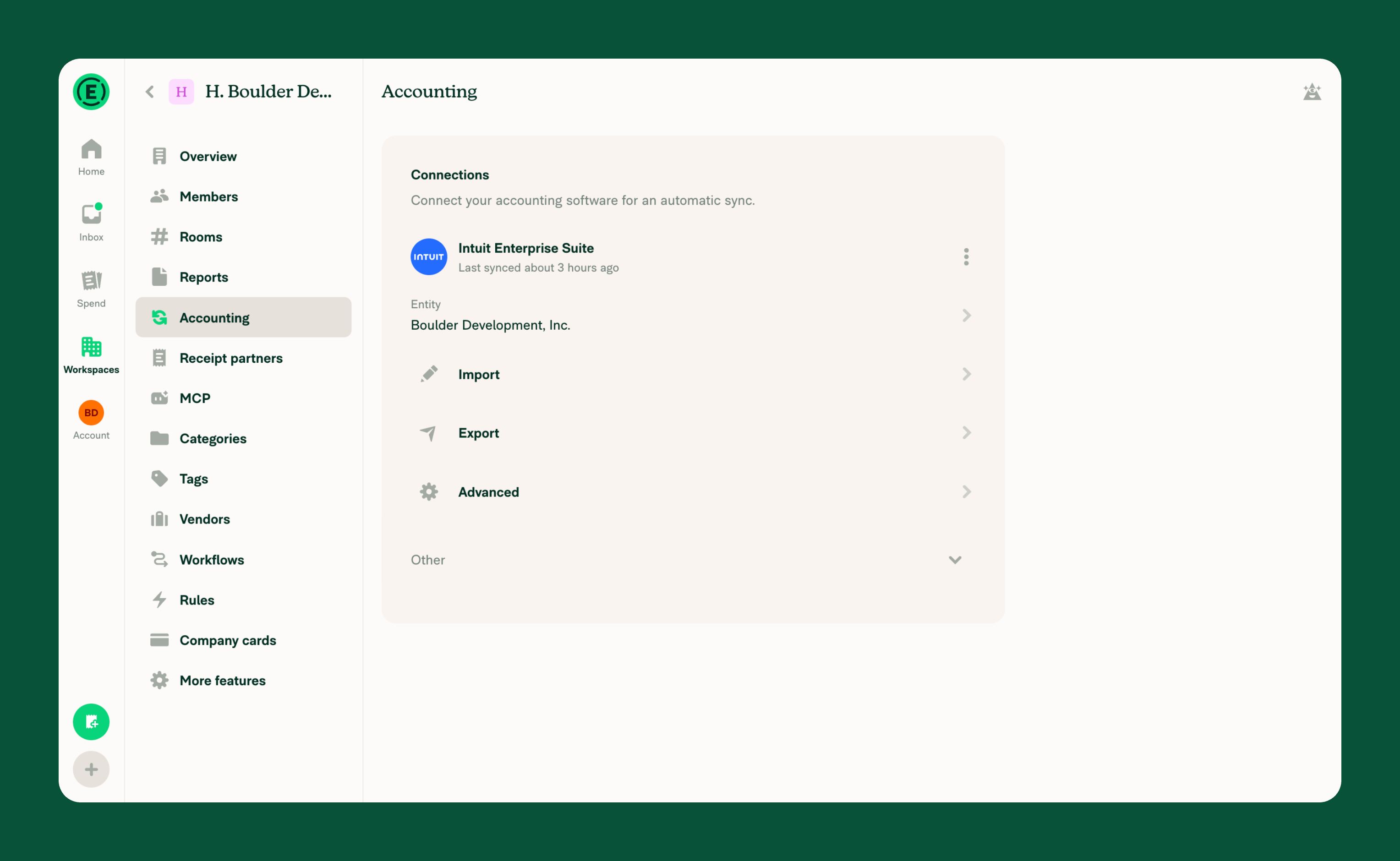
Each workspace has its own Intuit Enterprise Suite integration. To view or update the configuration settings:
- In the navigation tabs (on the left on web, on the bottom on mobile) select Workspaces > [workspace name].
- Select Accounting.
- On the Intuit Enterprise Suite connection, choose Import, Export, or Advanced.
How to configure Intuit Enterprise Suite import settings
The Import tab controls which accounting data is imported from Intuit Enterprise Suite into Expensify.
- Chart of accounts – Imports as Categories. This setting is always enabled.
- Dimensions – Choose which Intuit Enterprise Suite custom dimensions to import as tags. Each available dimension can be enabled independently.
How to configure Intuit Enterprise Suite export settings
The Export tab determines how Expensify sends data to Intuit Enterprise Suite.
- Preferred exporter – Assign the workspace admin to automatically receive reports to export.
- Export date – Choose the date to use when exporting reports to Intuit Enterprise Suite. You can choose Date of last expense, Export date, or Submitted date.
- Export out-of-pocket expenses as – Choose whether reimbursable expenses export as Check, Journal entry, or Vendor bill.
- Export invoices to – Choose which account to use when exporting invoices to Intuit Enterprise Suite.
- Export company card expenses as – Choose whether non-reimbursable expenses export as Credit card, Debit card, or Vendor bill.
- Export Expensify Card transactions as – Expensify Card transactions export as Credit card.
How to configure Intuit Enterprise Suite advanced settings
The Advanced tab controls settings like sync frequency, reimbursement, and settlement automation.
- Auto-sync – Automatically sync Expensify and Intuit Enterprise Suite every day and export reports automatically using your selected export method.
- Invite employees – Choose whether to import Intuit Enterprise Suite employee records and automatically invite employees to the workspace.
- Auto-create entities – Choose whether Expensify automatically creates vendors in Intuit Enterprise Suite when they don’t already exist, and creates customers when exporting invoices.
- Sync reimbursed reports – Automatically create bill payments in Intuit Enterprise Suite when reports are reimbursed in Expensify.
FAQ
Why don’t I see my custom dimensions on the Import page?
Custom dimensions only appear when:
- The workspace is connected to Intuit Enterprise Suite, not QuickBooks Online.
- The custom dimension is active in the connected Intuit Enterprise Suite entity.
- The connection has synced since the custom dimension was created.
Can I import a custom dimension as report fields instead of tags?
No. Custom dimensions always import as tags.
Who can configure Intuit Enterprise Suite settings?
Workspace admins on the Control plan with Accounting enabled under More features and Intuit Enterprise Suite connected to the workspace.


