


Configure Company Card Settings
Configure Company Card Settings
Configure company card feed settings to manage how an existing direct or commercial card feed works in your workspace. You can rename the feed, set its statement close date, allow cardholders to delete imported transactions, refresh available cards for a direct feed, or remove the feed.
To create a new connection, see Set up a Direct Connection for Company Cards or see Set up a Commercial Feed for Company Cards.
This article only covers third-party card feeds. To manage settings for the Expensify Card, see Set Up and Manage the Expensify Card.
Who can configure Company Card Settings?
Workspace admins and card admins can manage company card feed settings for an existing company card connection.
Some settings are available only for specific feed types. For example, Assign new cards is available for direct feeds.
How to configure settings for company card feeds
- In the navigation tabs (on the left on web, on the bottom on mobile), select Workspaces > [workspace name].
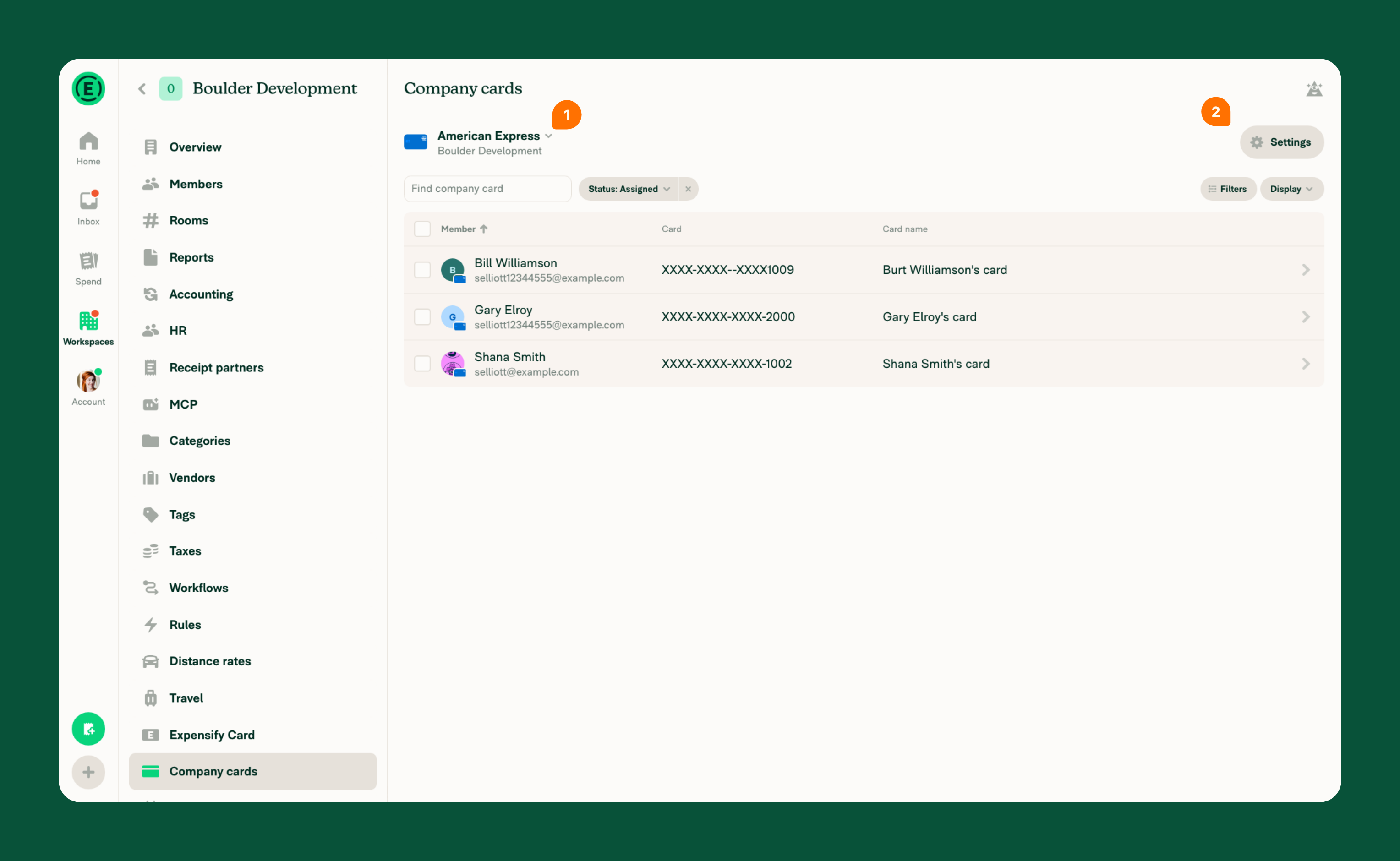
- Select Company cards.
- Confirm the card feed you want to manage is selected.
- If you have multiple card feeds and need to select a different one, select the current card feed name, then select the card feed you want to manage.
- Select Settings.
- Configure the applicable settings:
- Card feed name: Change the name of the card feed to make it easier to identify.
- Statement close date: Enter the date your card statement closes. Expensify uses this date to create a matching statement under Card statements on the Spend page.
- Allow deleting transactions: Allow cardholders to delete imported company card transactions. This setting applies only to transactions imported after it is enabled.
- Assign new cards: For direct feeds, reconnect to your bank and refresh the available card list so newly issued cards can be assigned.
- Remove card feed: Remove the card feed from the workspace, unassign its cards, and delete all imported expenses in the Unreported and Draft states. If the feed is not connected to another workspace, the feed is permanently deleted.
FAQ
Does enabling Allow deleting transactions apply to existing company card transactions?
No. Allow deleting transactions applies only to new transactions imported after the setting is enabled. Transactions imported before the setting was enabled are not affected.
What happens if I remove a company card feed?
Removing a company card feed unassigns all cards associated with that feed. Imported expenses in the Unreported and Draft states are also deleted.
If the feed is not connected to another workspace, removing it permanently deletes the feed.
What does the Statement close date do?
The Statement close date tells Expensify when the card statement closes. Expensify uses this date to create a corresponding statement under Card statements on the Spend page.
How do I manage settings for a different company card feed?
Settings applies to the currently selected card feed. If you have multiple card feeds, select the current card feed name, then select the feed you want to manage. Select Settings to configure that feed.


