


Expensify Card Statements
The Expensify Card provides detailed statements that help you track transactions and settlements with ease. This guide explains how to access, export, and manage your statements while understanding key details like settlement frequency and outstanding balances.
Accessing Your Statement
To view your Expensify Card statement:
- Ensure your domain uses the Expensify Card and has a validated Business Bank Account.
- Navigate to Settings > Domains > [Your Domain Name] > Company Cards.
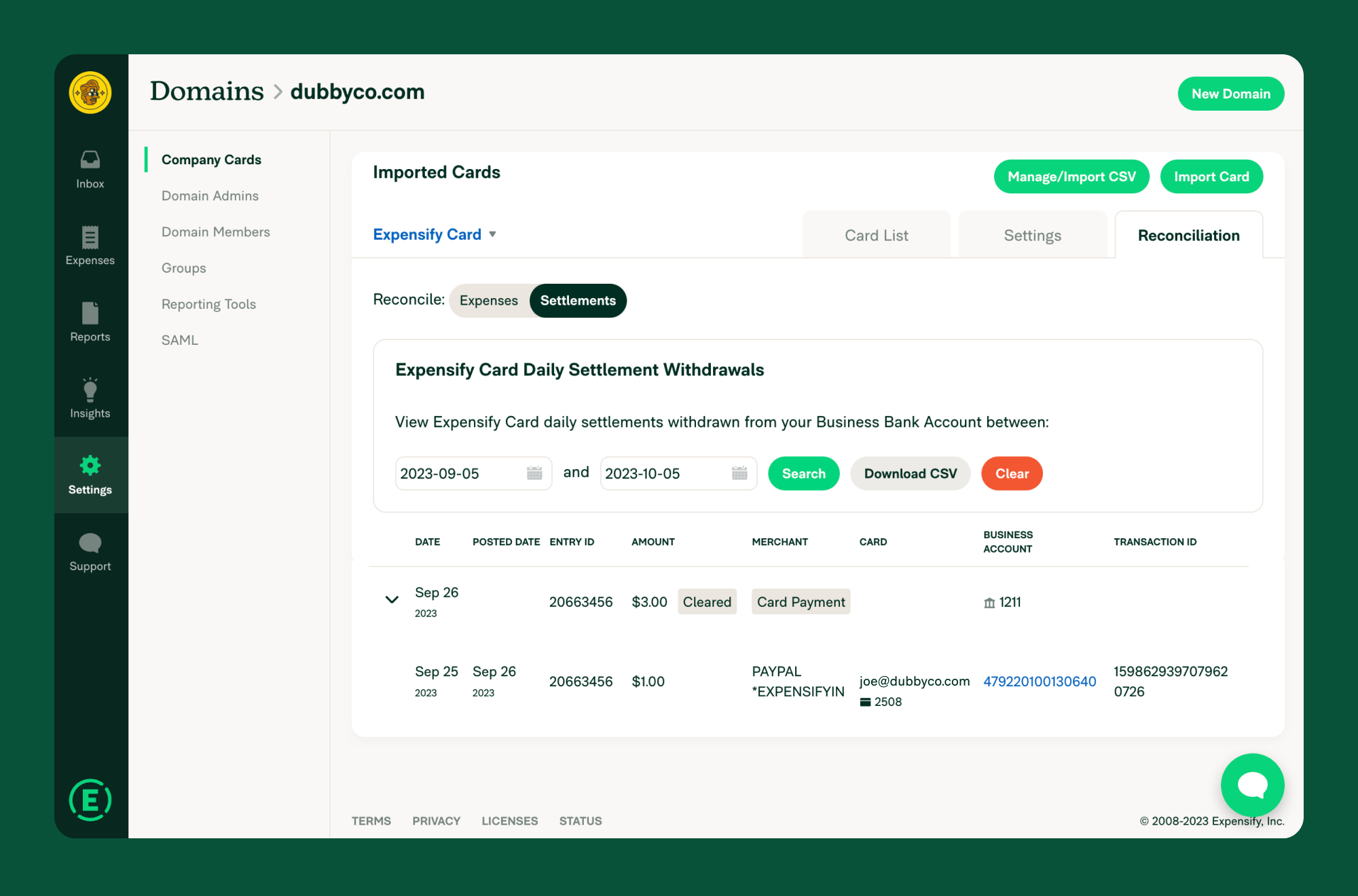
- Click the Reconciliation tab and select Settlements.
- Your statement will display:
- Transactions (Debits): Individual card purchases (transactions may take up to 1-2 business days to appear).
- Settlements (Credits): Payments made to cover transactions.
Key Information in the Statement
Each statement includes the following details:
- Date: The posted date of each transaction and payment.
- Entry ID: A unique identifier grouping payments and transactions.
- Withdrawn Amount: The total debited from your Business Bank Account.
- Transaction Amount: The purchase amount for each transaction.
- User Email: The email address of the cardholder.
- Transaction ID: A unique identifier for each transaction.
Note: Statements only include payments from active Business Bank Accounts under Settings > Account > Payments > Business Accounts. Payments from deleted accounts will not appear.
Exporting Statements
To download a traditional statement:
- Log in to Expensify.
- Go to Settings > Domains > Company Cards.
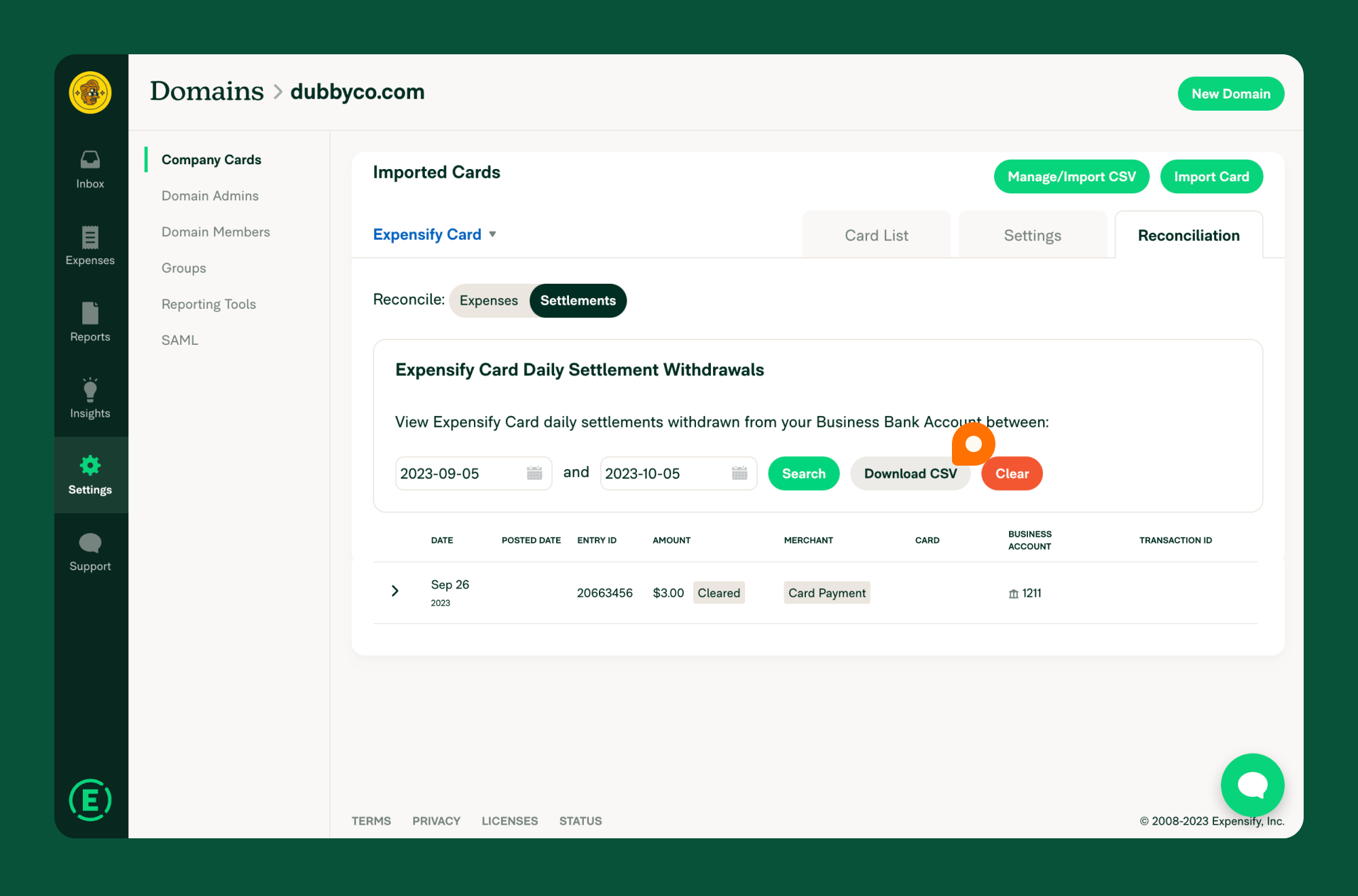
- Click the Reconciliation tab and select Settlements.
- Enter the start and end dates.
- Click Search to view the statement.
- Click Download PDF to export it as a CSV file.
To download a CSV statement:
- Log in to Expensify.
- Go to Settings > Domains > Company Cards.
- Click the Reconciliation tab and select Settlements.
- Enter the start and end dates.
- Click Search to view the statement.
- Click Download CSV to export it as a CSV file.
Expensify Card Settlement Frequency
You can choose between two settlement options:
- Daily Settlement: Your balance is paid in full every business day.
- Monthly Settlement: Your balance is settled once per month on a predetermined date (available for Plaid-connected accounts with no recent negative balances).
Updating Settlement Frequency:
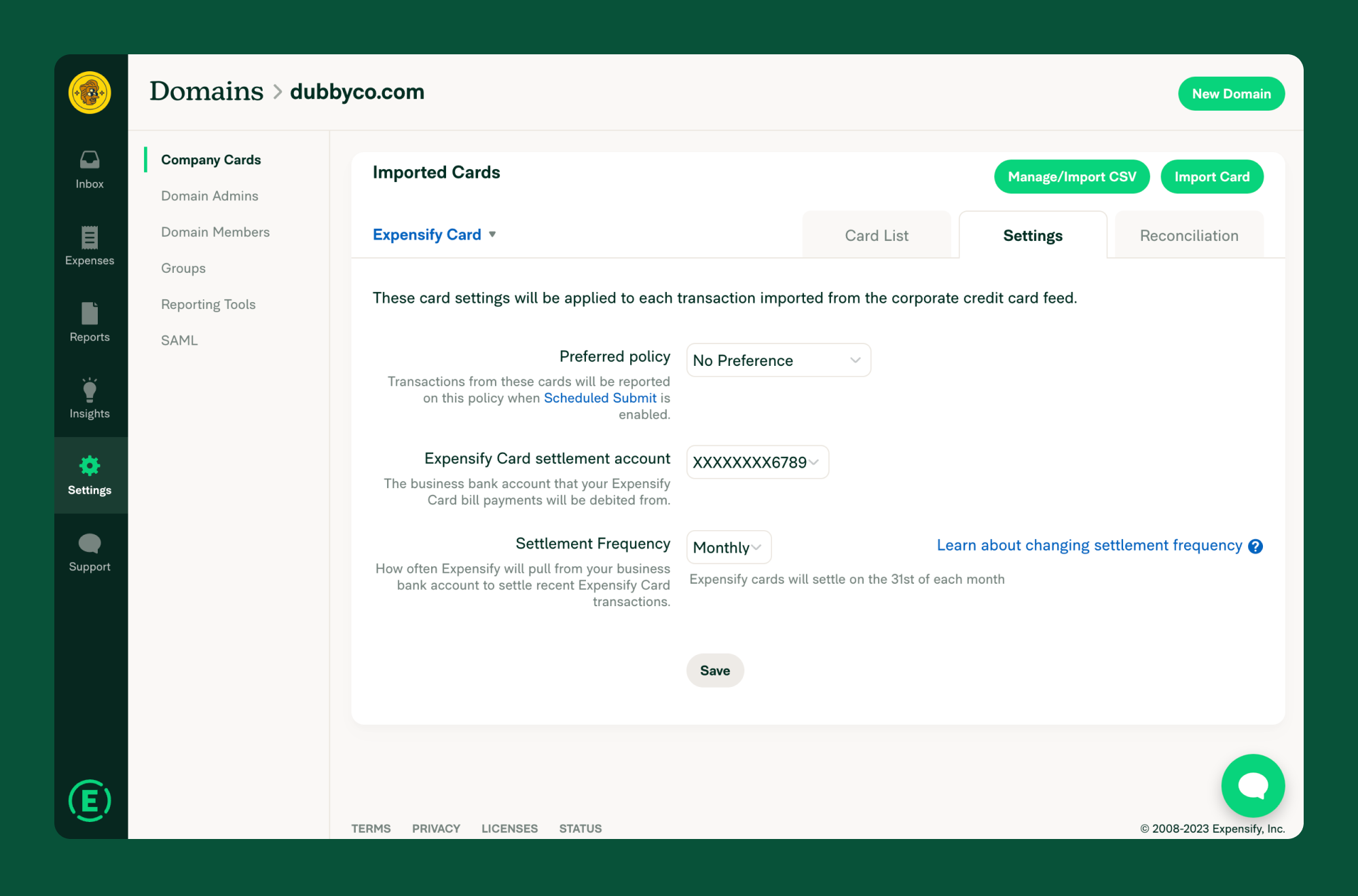
- Go to Settings > Domains > [Your Domain Name] > Company Cards.
- Click the Settings tab.
- Select either Daily or Monthly from the dropdown menu.
- Click Save to confirm.
Note: You cannot choose a specific settlement date beyond the available daily or monthly options.
How Settlement Works
- On your scheduled settlement date, Expensify calculates the total of all posted transactions.
- The total settlement amount is withdrawn from your Verified Business Bank Account, resetting your card balance to $0.
- To change your settlement frequency or bank account:
- Go to Settings > Domains > [Your Domain Name] > Company Cards.
- Click the Settings tab.
- Select new options from the dropdown menu.
- Click Save to confirm.
FAQ
Can I pay my balance early if I’ve reached my Domain Limit?
- Monthly Settlement: Click Settle Now to manually initiate payment.
- Daily Settlement: Balances settle automatically.
Will our Domain Limit change if our Verified Bank Account balance increases?
Yes, your limit may adjust based on cash balance, spending patterns, and Expensify usage history. If your bank account is connected via Plaid, updates occur within 24 hours of a fund transfer.
How is the “Amount Owed” on the card list calculated?
It includes all pending and posted transactions since the last settlement. Only posted transactions are included in the actual settlement withdrawal.
How can I view unsettled expenses?
- Check the date of your last settlement.
- Go to Settings > Domains > Company Cards > Reconciliation.
- Click the Expenses tab.
- Set the start date to the day after the last settled expenses and the end date to today.
- The Imported Total will display the outstanding amount, with a breakdown of individual expenses available.
How is Cash Back calculated?
Cash Back is calculated on net spend (purchases less refunds) with US merchants. Only transactions with merchants located in the 50 US states are eligible—US territories are not considered US spend.
Cash Back is calculated on eligible spend that has been successfully settled within 30 days of the settlement becoming due. There are no limits to Cash Back, and it’s in addition to the discount off an Expensify subscription when putting 50% of approved spend on the Expensify Card.
Important: Purchases relating to a failed settlement that remains unpaid for more than 30 days will no longer be eligible for Cash Back. This gives you a 30-day grace period in the event of a failed settlement.
What are the Cash Back rates?
- 1% Cash Back: If your domain’s total eligible spend is under $250,000
- 2% Cash Back: If your domain’s total eligible spend is $250,000 or more (applied to your total eligible spend, not just the amount over $250,000)
When are settlements included in Cash Back calculations?
Settlements are only included in Cash Back calculations once they have cleared. Clearing typically takes about 3 business days from when the settlement is initiated.
This means settlements from the last few days of a month may not be included in that month’s Cash Back calculation. These settlements will be included in the following month’s calculation instead.
In practice, settlements from around the 26th of the prior month through around the 25th of the current month are typically included in the current month’s Cash Back calculation.
Tip for Monthly Settlement Customers: If you want your Cash Back in the same month, set your settlement date for the 25th. This ensures all spend that occurred before then (as well as the last few days of the previous month) will be eligible.
How do I reconcile Cash Back?
To reconcile Cash Back, follow these steps:
- Run the Settlements CSV report in the Reconciliation Dashboard.
- The report shows which month’s Cash Back a transaction was included in and the merchant’s country to identify eligible spend.
- Look back 2 months (e.g., for cash back paid on August 1st, search June 1st to August 1st).
- Use the filters to view expenses where the Cashback Credited Date matches the payment date.
How do I receive Cash Back?
By default, Cash Back is automatically applied to your company’s Expensify bill. If you prefer to receive Cash Back via ACH, you can toggle this setting off in Domain settings.
If the Cash Back amount is higher than your bill amount, the remaining Cash Back is paid via ACH to your Settlement Verified Business Bank Account.
To view your Cash Back:
- Go to Settings > Domains > [Domain Name] > Company Cards > Reconciliation > Settlements.
- Check the Settlements table:
- If the amount is $0, the entire Cash Back amount was applied to your bill (visible on your bill).
- If an amount is listed, this is what was paid via ACH to your Expensify Card settlement bank account.
Note: If you have multiple domains receiving Cash Back under a single billing owner, only one domain’s Cash Back will be applied to your bill (if you’ve elected for that), and the other domains will be paid via ACH.
For additional support, contact Concierge via Expensify.


