


Accessibility
Accessibility at Expensify
Expensify’s mission is to make expense management effortless for everyone, and everyone includes people who rely on screen readers, keyboard navigation, magnification, and other assistive technologies. We’re committed to building a product that anyone can use to track expenses, chat, and manage money, regardless of ability.
What accessibility standards Expensify follows
We design and evaluate Expensify against the following accessibility standards:
- Web Content Accessibility Guidelines (WCAG) 2.2, Levels A and AA
- Revised Section 508 of the U.S. Rehabilitation Act
- EN 301 549, the European accessibility standard for ICT products and services
Expensify supports WCAG 2.2 Levels A and AA. Our latest Accessibility Conformance Reports rate every applicable Level A and AA success criterion as Supports across both the web app and the iOS and Android apps.
How to get Expensify’s Accessibility Conformance Report (VPAT/ACR)
An Accessibility Conformance Report (ACR), based on the Voluntary Product Accessibility Template (VPAT), documents how Expensify conforms to the standards above, criterion by criterion. We publish two reports: one for the web app and one for the mobile apps.
Our reports were produced from an evaluation of Expensify using:
- Screen readers: JAWS, NVDA, VoiceOver, and TalkBack
- Keyboard-only navigation
- Browser zoom and text spacing checks
- Color contrast analysis
- Automated tooling
- Chrome, Firefox, and Safari on desktop
To download the latest report, go to the Expensify Trust Center resources page.
How to report an accessibility issue
Expensify’s app is open source, and accessibility issues are tracked publicly on GitHub. If you hit an accessibility barrier in Expensify, create a new issue using the Accessibility issue template.
When filling in the template, include:
- The steps you took and what happened versus what you expected
- The WCAG checkpoint that failed, if you know it
- The platform (web, iOS, Android) and the assistive technology you were using
Where to track accessibility issues and progress
Every accessibility issue is labeled Accessibility and tracked in the open, so you can follow the public accessibility backlog at any time.
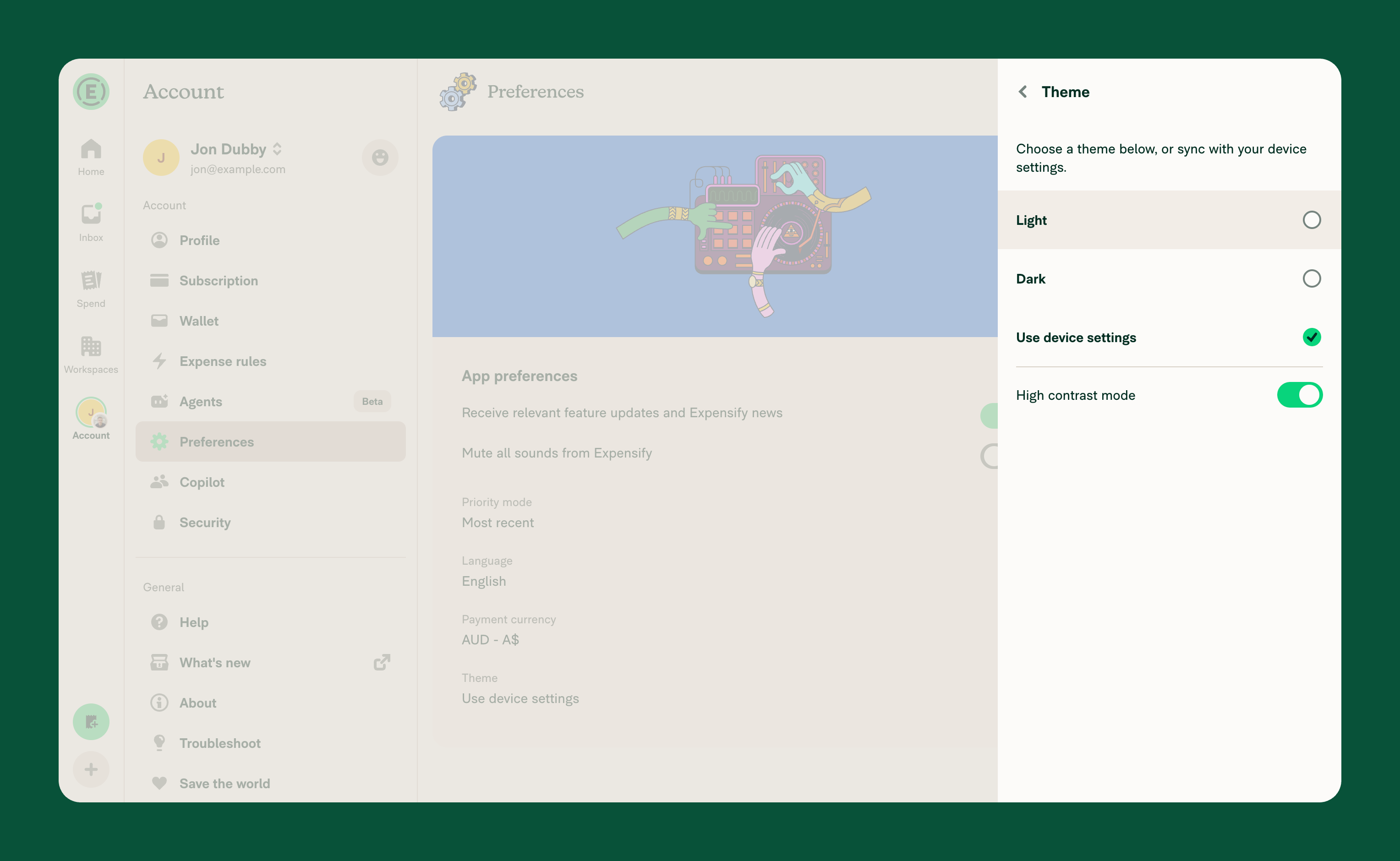
How to turn on high contrast mode
High contrast mode increases the contrast between text, icons, and backgrounds across Expensify. It works with any theme, so you can pair it with Light, Dark, or your device settings.
You can turn it on before signing in: on the sign-in page, click Enable high contrast in the footer.
To turn it on once you’re signed in:
- Click your account avatar and go to Preferences.
- Click Theme.
- Toggle High contrast mode on.
FAQ
Does Expensify conform to WCAG 2.2 Level AA?
Yes. The web app and the mobile apps both support WCAG 2.2 Levels A and AA. See the Accessibility Conformance Report for the criterion-by-criterion detail.
How do I get Expensify’s VPAT or Accessibility Conformance Report?
Download it from the Expensify Trust Center resources page. You may be asked to submit a short access request form.
How do I report an accessibility issue without a GitHub account?
Email compliance@expensify.com with the details, and we’ll file the issue for you.
Who do I contact about accessibility compliance documentation?
For compliance questions about the report, contact compliance@expensify.com. For SOC reports and other compliance documents, see the Expensify Trust Center.


